How to Use Stampdy's AI Stamp Maker — Without Overcomplicating It
I'll start with the honest version of this.
Most people who land on an AI stamp maker for the first time spend the first five minutes slightly confused. Not because the tool is broken, but because they're not sure what to type, what the options mean, or whether what they're making is actually going to look professional at the end.
I've watched this happen. So instead of writing the usual "here are five easy steps" article, I want to walk through how Stampdy's AI stamp maker actually works — including the parts that aren't obvious from the interface — so you can get to a usable result without the trial-and-error frustration.
Let me walk you through this step by step — with screenshots along the way so nothing gets lost in translation.
Getting to the AI Stamp Maker
First, head to the Stampdy website. You'll find the AI Stamp Maker in the second item on the top navigation bar. Click it, and you'll land on a page that looks like this:
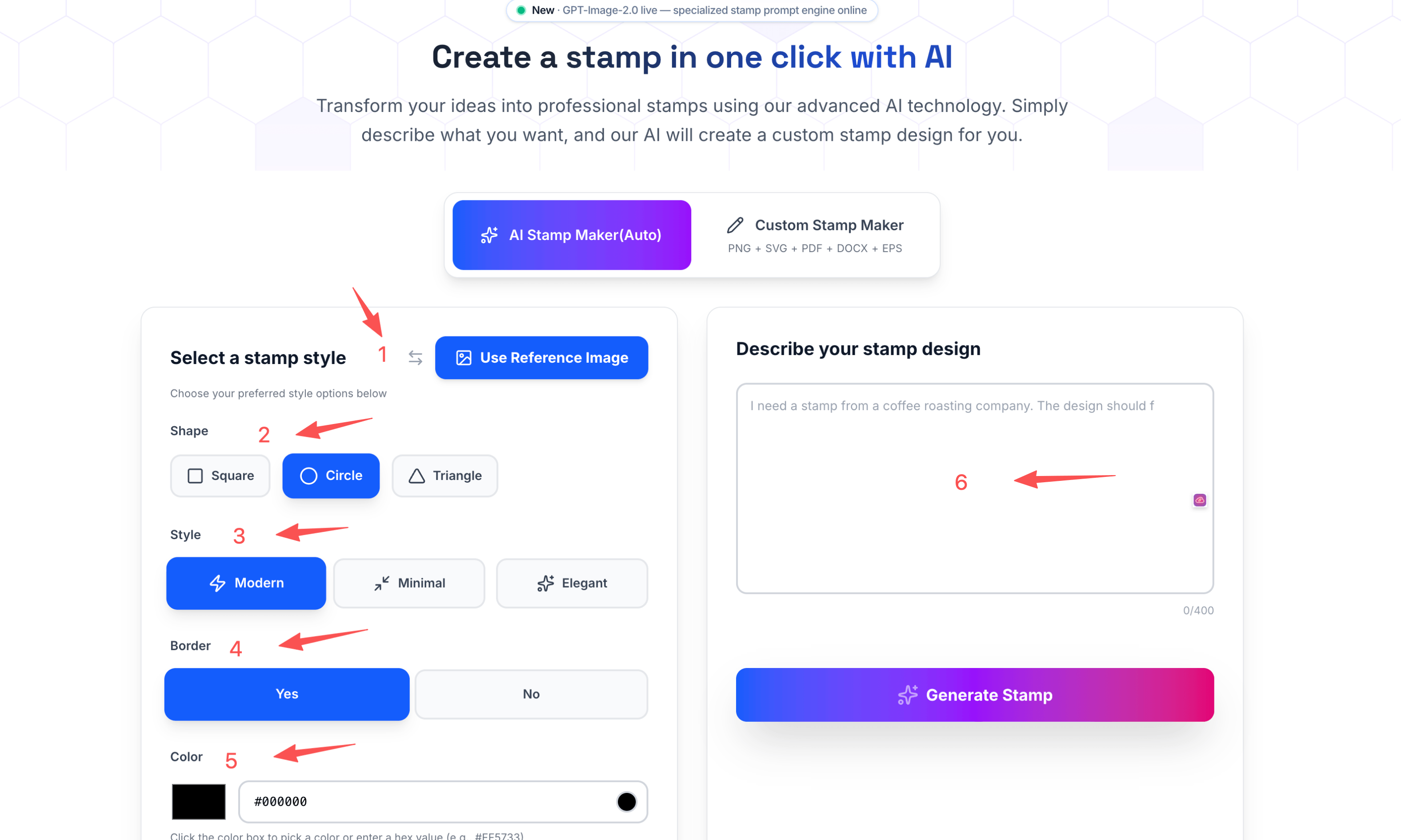
The first thing worth pointing out — we've integrated GPT-Image-2, OpenAI's latest image generation model. It currently produces the highest image quality and sharpest resolution of any model available. In practical terms, that means your stamp generates faster and comes out cleaner than anything you'd get from older AI tools.
Now let me walk you through each part of the interface. I've numbered the sections in the screenshot above, so I'll go through them in order.
Section 1 — Choose Your Mode
You have two ways to work here.
Option A: Style Mode (default)
You set a few simple parameters on the left side, type in your stamp content on the right, and hit generate. Simple and fast — good if you're starting from a blank slate.
Option B: Use a Reference Image
See the "Use Reference Image" button next to the style options? Click that, and the interface shifts to a different mode:
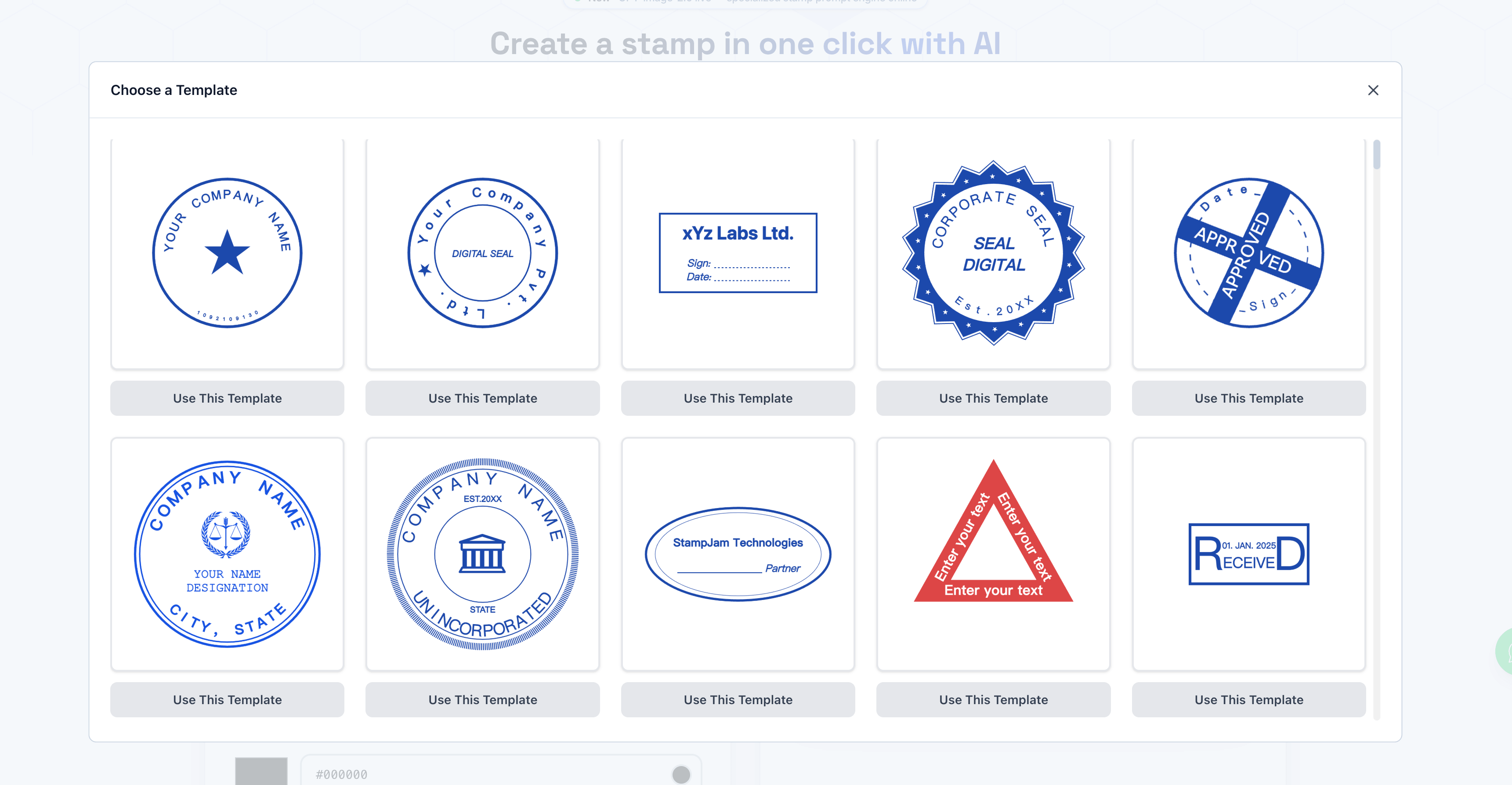
Here you can browse through hundreds of existing stamp templates, pick one that's close to what you want, and let the AI take it from there — swapping in your own content while keeping the layout and style of the original. If you go this route, you don't need to touch the style options at all. Just pick your template, describe what you want changed, and generate.
Section 2 — Shape
Still in Style Mode? This is where you tell the AI what shape you want your stamp to be. Three options:
❶ Circle — the classic
❷ Triangle — less common, but great for specific use cases
❸ Rectangle — clean and professional, works well for approval stamps
Section 3 — Style
This controls the overall visual feel of the stamp. Again, three choices:
❶ Modern — clean lines, contemporary feel
❷ Minimal — stripped back, no-frills
❸ Elegant — more refined, slightly decorative
Pick whichever fits the purpose of your stamp. There's no wrong answer here.
Section 4 — Border
Do you want a border on the outside of your stamp, or not? That's all this one is asking.
Some stamps look better with a clear outer ring framing everything. Others feel cleaner without one. You can toggle this on or off depending on what you're going for.
Section 5 — Color
Exactly what it sounds like — the color of your stamp. We support any color you want, so don't feel limited to the classic red or blue. Pick whatever fits your brand, your document, or your preference.
Section 6 — Your Stamp Content (The Most Important Part)
This is the field on the right side of the page, and honestly, it's where the magic happens.
Type in what you want your stamp to say. You can write up to 400 words — but don't worry, we're not going to engrave every single word onto the stamp. The AI reads your input, pulls out the meaning and key information, and uses that to generate the design. The accuracy here is genuinely close to 100%, so feel free to be descriptive and natural. Write it the way you'd explain it to a person.
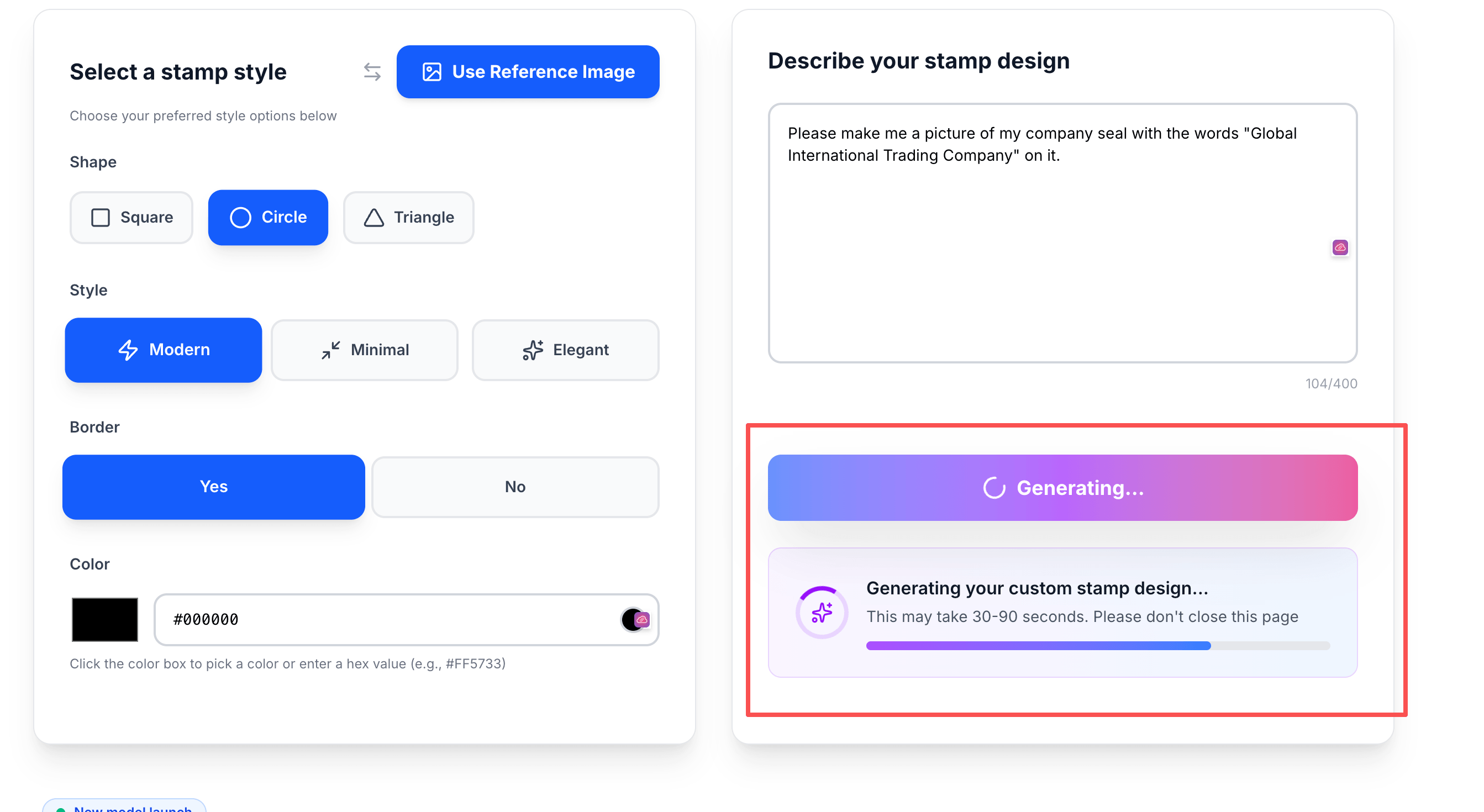
Once you've filled that in, hit generate. The AI gets to work, and within 60 seconds — usually less — your stamp is ready.
A Note on Why This Isn't Free
I want to be upfront about this, because it's a fair question.
Stampdy's AI stamp maker runs on GPT-Image-2, which means every generation goes through OpenAI's API — and OpenAI charges us for every single request. We don't have a way to absorb that cost and offer unlimited free generations, so we ask you to pay before generating.
I know that's not what everyone wants to hear, but that's the honest reason. No hidden upsells, no subscription traps — just a straightforward cost that reflects what it actually takes to run this.
Getting Your Stamp
After the generation completes, you'll see something like this:
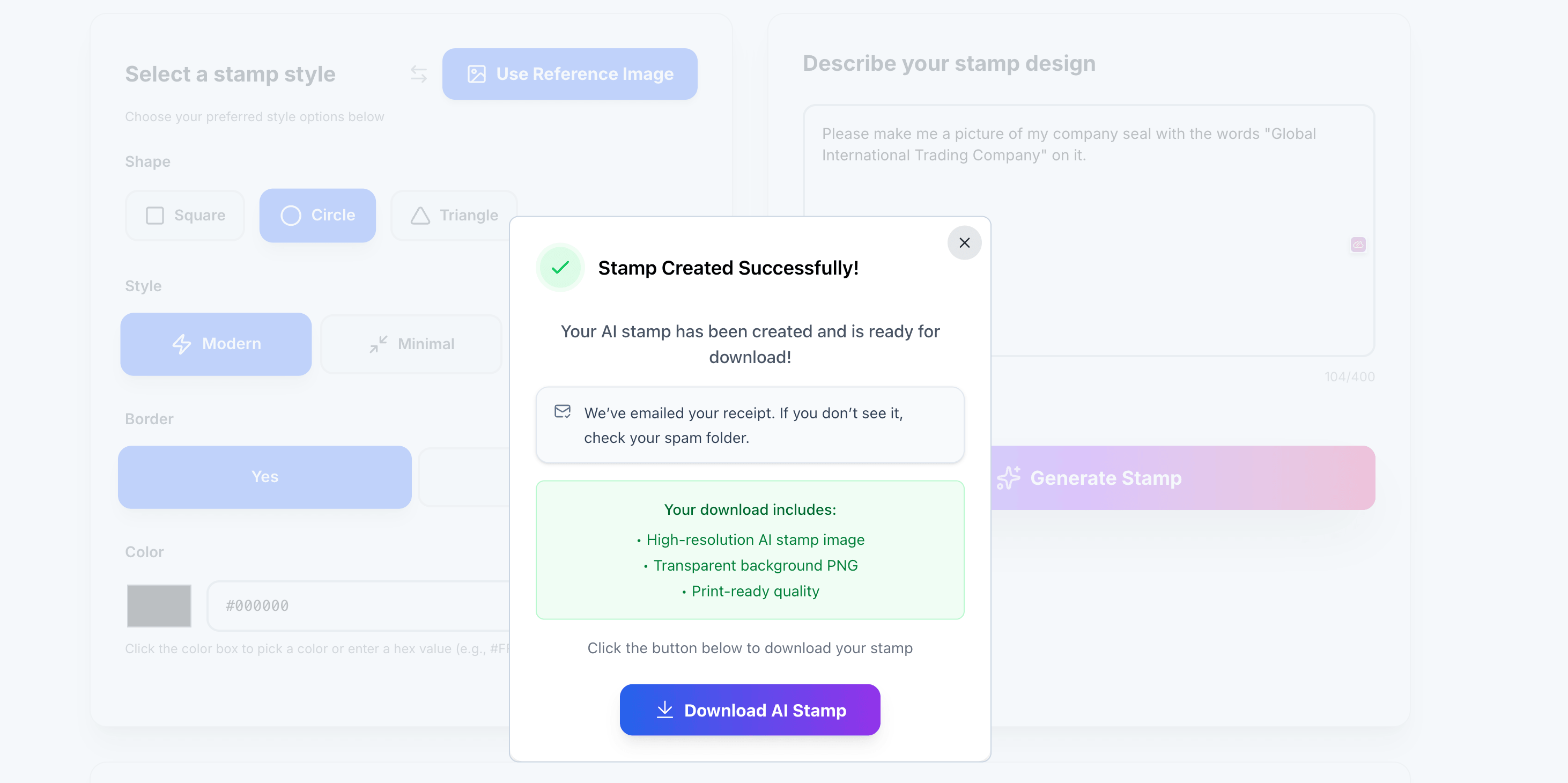
Your browser will also automatically start downloading the image. If for some reason the auto-download doesn't trigger, there's a download button right there on the page — click it and you're done.
That's the whole process. A few inputs, less than a minute of waiting, and you have a high-resolution stamp image ready to use on any document.
Prefer to Build It Yourself?
If you enjoy the hands-on process of designing a stamp from scratch, that option exists too. Switch to the Stamp Editor tab on the right side of the page:
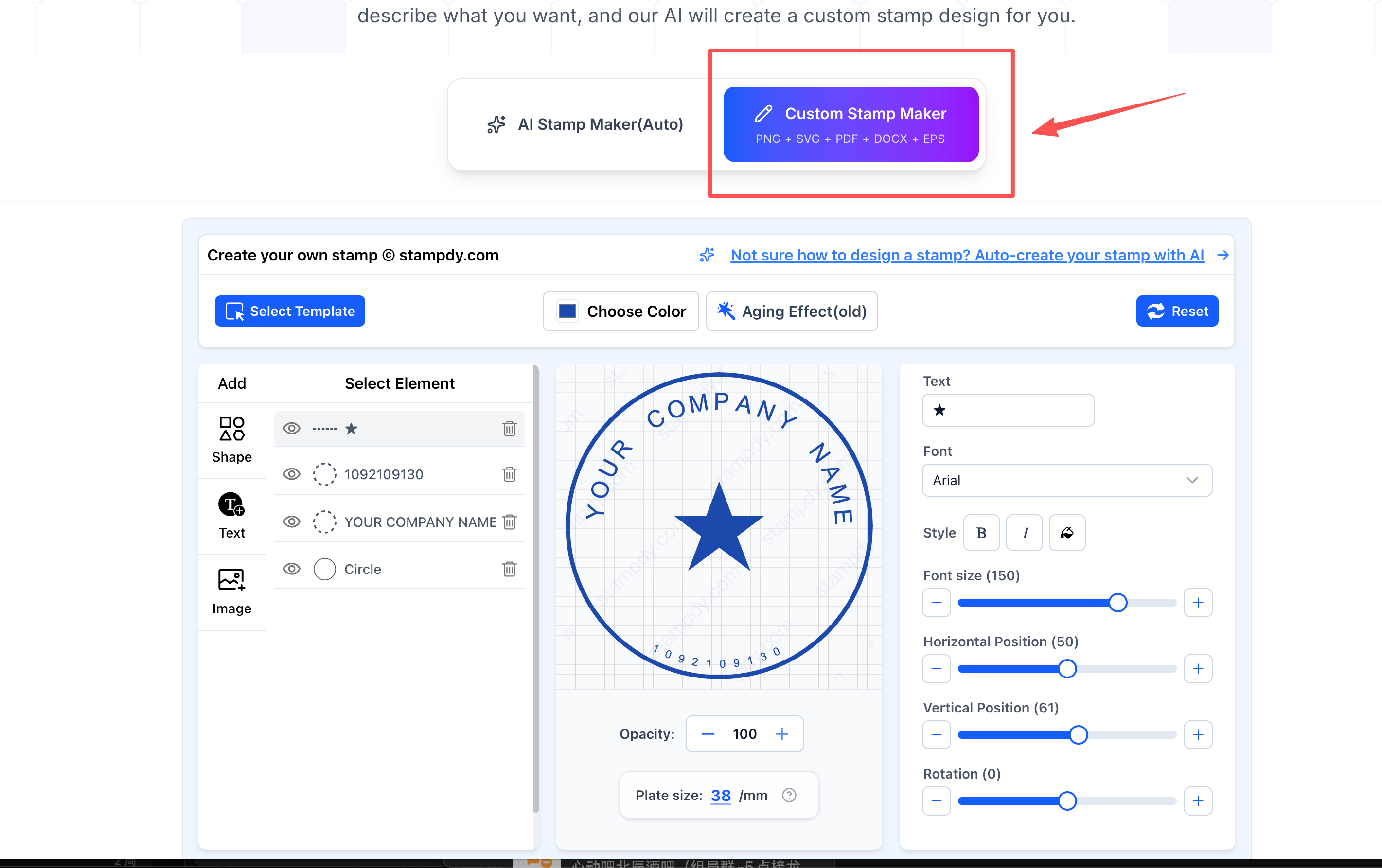
This takes you into the full manual editor where you control every element — text placement, font, size, border weight, icon position, all of it. It takes longer, but if you want precise control over the final result, this is where you'd do it.
Both paths lead to the same place: a stamp that's yours, ready to use.
If anything in this guide is unclear, reach out to me directly on WhatsApp — you'll find the button on the right side of the page when you visit the site on desktop. Just tap it and I'll know you're there.
Looking forward to seeing what you create.