Signature Maker Basics for a Document People Can Sign Without Guessing
A signature maker sounds simple until the document reaches a real person. Then the small details start to matter. Where does the signature go? Does the signer know what they are approving? Is the final PDF stored somewhere sensible? Do the stamps on the page still look sharp after export?
For Stampdy users, I would treat the signature maker as one part of the signoff process, not a separate decorative step. The signature captures approval. PDF review catches layout problems. The stamp maker creates reusable marks that make the file easier to read and route.
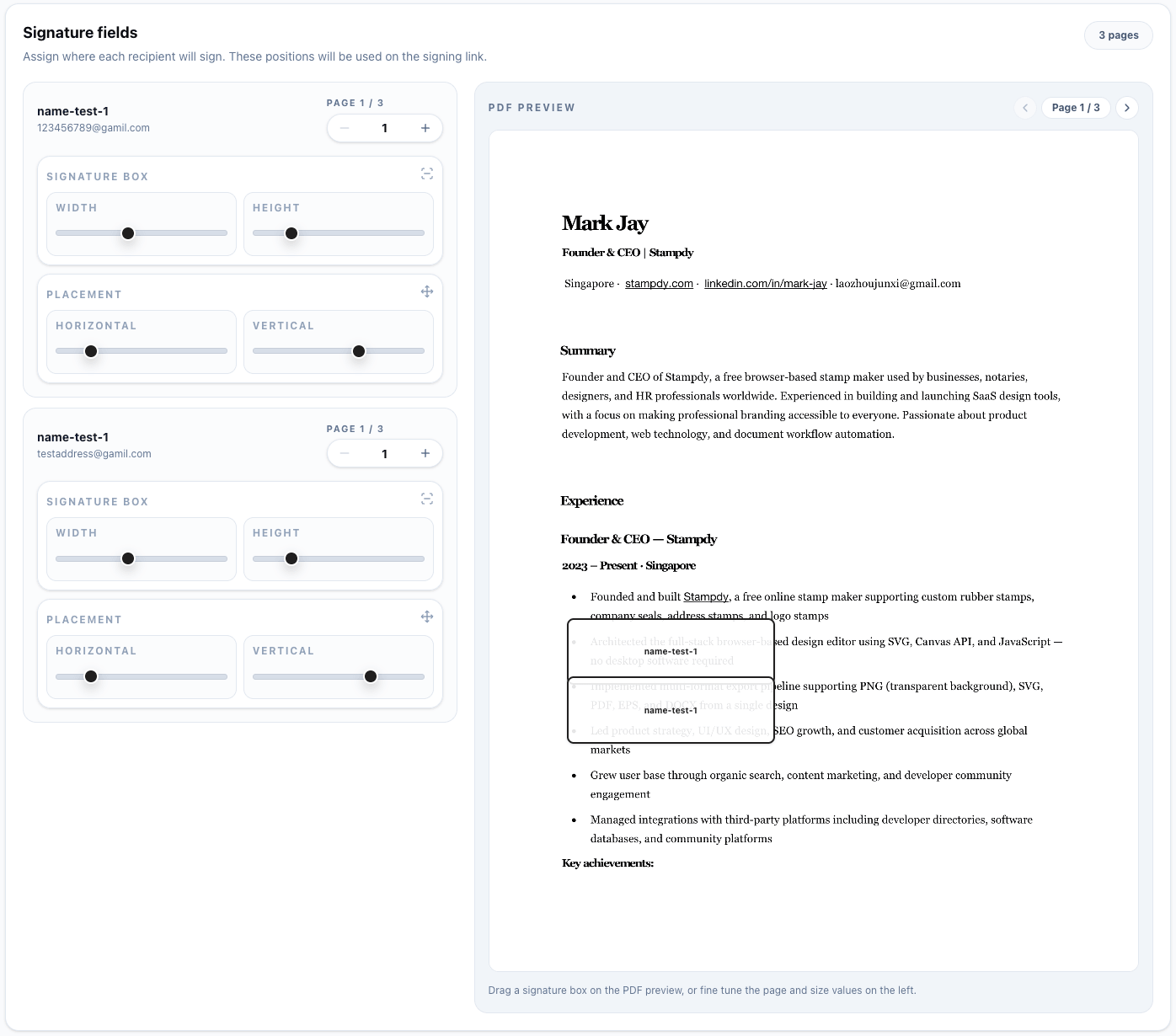
Give The Signer One Obvious Place To Act
A signature maker should make the signer feel certain, not cautious. Put the signature box where the document naturally asks for acceptance. Do not squeeze it under dense text or place it on a page that looks unrelated to the decision.
The Stampdy signature tool helps with the request flow, but the sender still owns the setup. Use signer names that are easy to recognize. Keep the request message short. If the document needs a specific deadline, say so plainly.
When several people need to sign, do not rely on memory. Define the order and make sure each field belongs to the right person. A small mistake here can make a polished PDF feel careless.
Write The Request Like A Human
The request message is easy to ignore because it feels secondary to the signature. It is not. A signer who receives a cold, unexplained request may delay it, ask what it is, or forward it to someone else. A signer who receives a short, clear note is more likely to act.
I would write the message the way a good teammate would write it. "Please sign the attached vendor agreement after checking the start date and company name. We need the completed PDF before Friday's onboarding call." That is enough. It tells the signer what to check, why it matters, and when it is needed.
Do not overload the request with legal commentary or a long internal backstory. If the PDF needs a detailed explanation, the document probably should have been introduced before the signature request. The signature maker should sit at the end of a clear conversation, not replace the conversation entirely.
For repeat documents, save a few message patterns. One for customer agreements. One for HR acknowledgments. One for internal approvals. Keep them plain. The goal is not to sound official. The goal is to make the next action obvious.
Match The Field To The Document Tone
A signature field on a contract can be formal. A field on an internal acknowledgment can be simple. A field on a creative approval sheet may sit beside a reviewed stamp or a date mark. The signature maker should match the tone of the document instead of forcing the same visual treatment everywhere.
That does not mean redesigning every request. It means paying attention to placement, spacing, and labels. If the document already has a signature block, use it. If the PDF has no clear signing area, place the field where acceptance naturally belongs and leave enough room around it. A cramped signature field makes the whole page feel rushed.
When stamps are involved, keep the stamp and signature from fighting each other. A company seal beside a final signature can look appropriate. A large approval stamp sitting directly over the signer name does not. If the stamp is important, give it room. If the signature is the main action, keep the stamp quieter.
Use Stamps For Context, Not Decoration
Some documents need a visible approval mark before or after signature. That might be a finance stamp, a reviewed stamp, a department stamp, or a company seal. Build those assets in the Stampdy stamp maker instead of reusing blurry screenshots from old files.
A stamp should help the reader understand the document status. Keep it close to the section it supports. Do not place it over body text or signature lines. If the stamp competes with the actual signature, make it smaller or move it.
This is especially important for teams that print some documents and keep others fully digital. A stamp that looks fine on a large monitor may be hard to read on paper. Test it once before using it across a recurring workflow.
Do A Mobile Reality Check
Many signers will open the request on a phone, even if the sender prepared the PDF on a large monitor. That changes how the document feels. A signature field that looks obvious on desktop may be less obvious on a small screen. A stamp that looks tasteful at full size may become a blur.
Before sending an important document, preview it at a smaller size. You do not need a full device lab. Just zoom out or open the PDF on a phone once. Check whether the signer can see where to act without hunting. Check whether the stamp still reads as a stamp, not a random graphic. Check whether the page order still makes sense.
This habit is especially useful for employment forms, customer approvals, and vendor paperwork. People often sign those between meetings or while traveling. If the request is easy to understand on a small screen, it will also be easy on desktop. The reverse is not always true.
Keep The Source Assets Close
Once a signature maker flow works well, save the pieces that made it work. Keep the clean PDF template, the approved stamp asset, and a short note about field placement. That way the next request starts from a reliable base instead of a previous signed copy.
Do not use a completed signed PDF as the source for the next job. It may contain old names, old dates, or flattened marks that are hard to edit cleanly. Start from the template or working file. Then add the current signer, stamp, and message.
This is one of those quiet habits that makes a team look more organized than it feels. The sender spends less time rebuilding documents. The signer sees a cleaner request. The final record is easier to understand when someone opens it later.
Do Not Let Style Choices Distract From Signing
It is tempting to spend too much time on the visual style of a signature or stamp. A little polish is useful. Too much polish can get in the way. If a signer has to think about the decoration before they understand the action, the document is doing too much.
For ordinary business PDFs, I would choose clarity first. The signature field should be easy to find. The stamp should be readable. The page should still feel like a document, not a poster. That usually means leaving more white space than feels exciting in the editor.
This is especially true when a document includes both a signature maker element and a stamp maker asset. The two marks should feel like part of the same page, but they should not compete. The signer should notice where to sign first. The stamp can support the status of the document without becoming the center of attention.
Save A Clean Unsigned Copy
After a document is signed, people sometimes treat the signed PDF as the new starting point. That is a mistake. Keep a clean unsigned copy or template for future use. The signed PDF is a record, not a drafting file.
A clean source file helps avoid accidental reuse of old names, old dates, old signature fields, or outdated stamps. It also makes the next request faster. Instead of erasing the previous signer and hoping nothing is missed, the sender starts with a fresh document that was meant to be reused.
If the team sends the same form often, keep a short note beside the clean copy: where the signature field goes, which stamp maker asset belongs on the page, and what the request message usually says. That note should be plain enough for a new teammate to follow without asking for a walkthrough.
Finish The Record, Not Just The Signature
Once the document is signed, the job is not finished until the final PDF is named and stored. Use a file name that includes the document type, party, and date. If your team tracks requests in Stampdy, check the signature requests page so nothing remains half-finished.
Keep the approved stamp asset and signed PDF connected through your folder structure or internal notes. That way a new teammate can understand why a mark appears on the document and which version was used.
That is the standard I would aim for: the signer knows what to do, the sender knows what happened, and the final record is clean enough to share without extra explanation. The details below help keep that standard intact across different people, devices, and document types.
Treat The Signature As The Signer's Choice
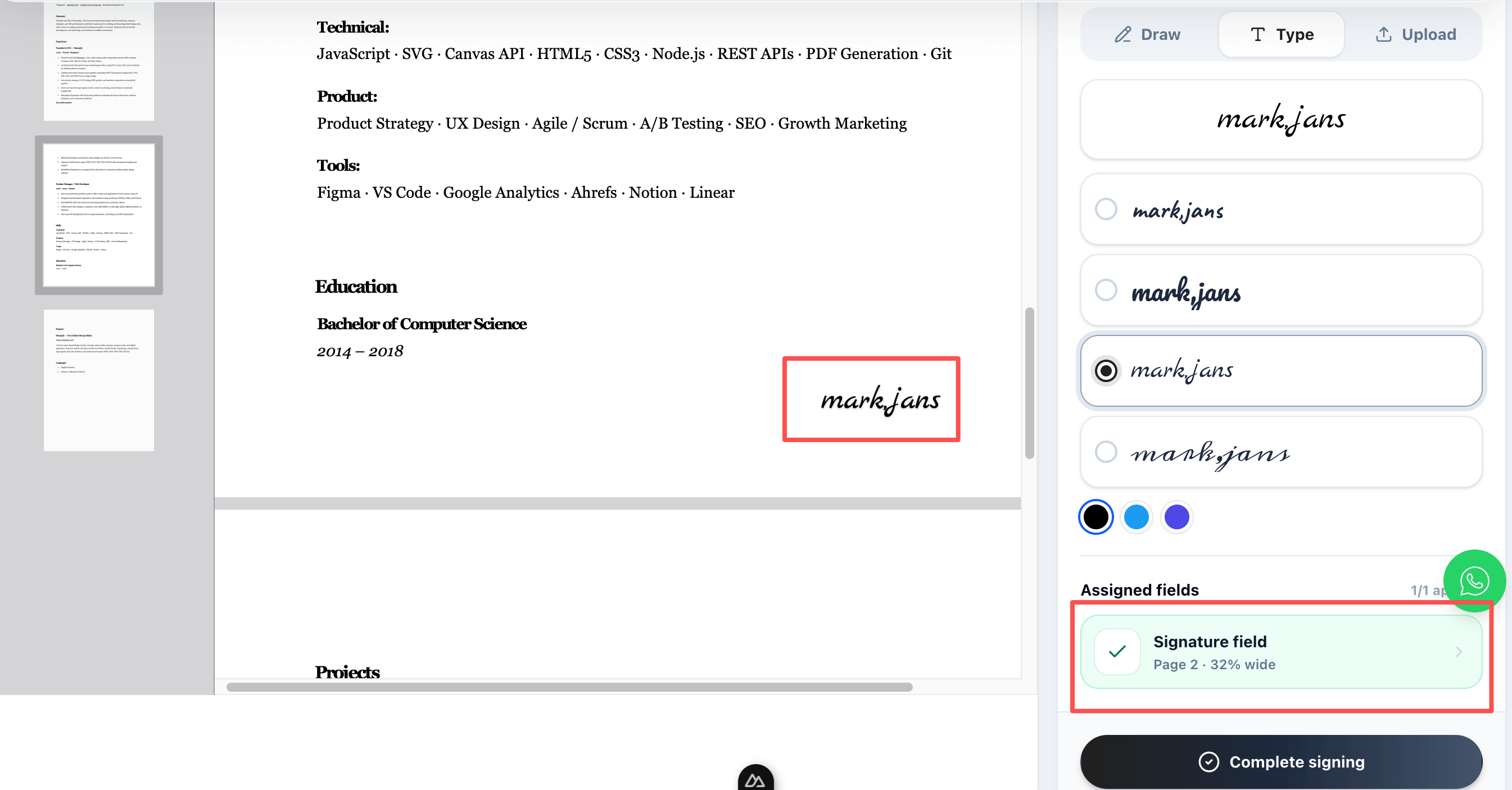
A signature maker should not quietly choose an identity mark for someone. The signer should see the available method, create or select the signature, review it, and decide when to apply it. That sequence matters because a signature is personal even when the surrounding workflow is routine.
Some people want to draw with a mouse or finger. Some prefer a typed rendering because drawing on a trackpad feels awkward. Others already have a clean signature image they use consistently. Supporting those preferences can make the action more comfortable, but each option should be presented plainly. Avoid suggesting that one decorative style is more valid simply because it looks more like ink.
The preview should show the entire mark and make correction easy. Long names should not be cut off. A transparent upload should not display with a mysterious box around it. If the person changes their mind, they should be able to clear the signature before it touches the document.
For shared workstations, do not assume the previous person's saved signature belongs to the next user. The safest experience makes the active identity obvious and avoids exposing another person's reusable mark. Convenience is useful only when it does not create uncertainty about who is signing.
Leave Enough Space In The Source Document
Many signature problems begin in the document template, not in the signature maker. A designer leaves a short line because it looks tidy. A contract table gives the signature column less room than the date. A form places legal text immediately below the signing area. The generated signature then has nowhere to sit without covering something.
Fix the source before trying to squeeze the mark. Give the signature area enough width for a long name and enough height for a natural drawn stroke. Keep labels such as "Authorized Signature," printed name, title, and date separate. A visible box or line can guide placement, but it should not intersect the signature in a way that makes the final page hard to read.
When two parties sign, give them balanced areas. One side should not look like the official signature while the other looks like an afterthought. If they sign on different dates, make room for both dates instead of relying on the PDF viewer to find spare space.
Stamps should be planned in the same layout. Reserve an area for a company seal or internal approval mark if it is genuinely required. Adding the stamp maker output after the page is full almost always creates visual conflict.
Use Labels That Describe The Action
The words around a signature field influence how the signer understands it. "Sign here" is useful but may not be enough when the page contains several approvals. A label such as "Customer Acceptance," "Employee Acknowledgment," or "Authorized Company Signature" provides context without adding a paragraph.
Keep the label consistent with the document. Do not call an acknowledgment an approval if the person is only confirming receipt. Do not call an internal review field a client signature. Precise labels protect both the signer and the team from later disagreement about what the action meant.
If initials are required, explain why and place them near the relevant clause or page. Do not scatter unlabeled initial boxes through a long PDF and expect the signer to infer the pattern. If a date is captured automatically by the workflow, avoid asking the signer to type the same date again unless the document requires it.
A stamp should have an equally clear label or self-explanatory wording. A beautiful round mark that merely says the company name may function as a seal. A review status should say what was reviewed. The signature maker and stamp maker contribute different evidence, and the page language should preserve that difference.
Prepare The Request For Accessibility
People sign documents with different devices, vision, dexterity, and reading preferences. A clean workflow should not depend on tiny controls, color alone, or a perfect freehand drawing. Accessibility is not a special version of the process; it is part of making the ordinary process understandable.
Use readable labels and strong contrast around required actions. Make sure keyboard users can move through fields in a sensible order where the interface supports it. Do not communicate signer ownership only through red and green outlines. Error messages should name the missing field and help the person return to it.
The PDF itself also matters. Scanned pages with faint text, sideways orientation, or no selectable content are difficult before the signature step begins. Improve the source or provide an accessible alternative when needed. A signature maker cannot repair an unreadable document by placing a clear field on top of it.
Offer a human contact for important requests. A signer who cannot use the provided method should be able to ask for help or another format without feeling that they are refusing the document. That response path is especially important for employment, healthcare, education, and customer agreements.
Keep Branding Quiet And Consistent
Branding can reassure a signer that the request came from the expected organization. It can also overwhelm the document if every available space carries a logo, stamp, colored border, or promotional message. Signing is a focused task, not a marketing page.
Use the organization's name and visual identity consistently in the email, request page, and PDF. A sudden change in sender name or logo can make a legitimate request look suspicious. If a department sends on behalf of the company, explain that relationship in the message.
Inside the PDF, let the content lead. The signature should fit the existing document style, and the stamp should use an approved asset with enough contrast. Avoid using a dramatic signature font merely because it matches a campaign design. The signer is creating an identity mark, not selecting display typography for the company.
When the brand changes, review reusable templates and stamp maker assets together. Updating the request email but leaving an old company seal in the PDF creates a visible mismatch. Archive old assets where historical documents can still be understood, while making the current versions easiest to reach.
Decide What Can Be Reused
Reusing a personal signature can save time for someone who signs frequently, but it needs boundaries. The user should know when the signature is being reused and on which document. A saved mark should never turn into automatic consent for a new PDF.
For teams, reusable document pieces are often more valuable than reusable personal marks. A clean signature block, a reliable field layout, an approved stamp, and a tested request message remove setup work without making the decision on the signer's behalf.
Separate shared assets from personal assets. The company may own the form template and seal. The individual owns or controls their signature. Do not store employee or client signature images in a general design folder beside logos and stamps. Restrict access according to the sensitivity of the record and the product's supported controls.
If a person leaves the organization or changes roles, review any workflow that assumed their signature or authority. Removing them from a template or signer list is as important as updating the visible company stamp. Old completed records should remain intact; future requests should use the current authorized person.
Handle Mistakes Before They Become Records
A signer may draw the wrong mark, select the wrong field, notice a typo, or realize that they are not the authorized person. Give them a clear way to stop and ask for correction before completion. The sender should treat that pause as useful information rather than pressure the person to finish.
If the PDF content is wrong, correct the source and send a new request. If only the signature preview is wrong and the request is not complete, let the signer clear it and try again. If the wrong person received the file, cancel or replace the request rather than asking them to forward a private signing link.
After completion, do not edit the signed PDF to make it look better. A cramped mark, misplaced stamp, or incorrect date may be embarrassing, but changing the file weakens the connection between the record and the action. Decide whether the issue requires a new signature, an amendment, or simply a layout improvement for future documents.
Write down recurring mistakes. If people repeatedly sign in the printed-name field, the labels or field order need work. If a stamp covers text after completion, the template needs more space. Correcting the pattern is more useful than blaming the individual request.
Give Senders A Short Final Check
The sender should perform a final check that takes less than a minute for routine files. Open the exact PDF attached to the request. Confirm the document name and parties. Check field ownership, required dates, and signing order. Look at the stamp at normal zoom. Read the request message once for the wrong customer name or stale deadline.
This check works best when it is visible near the action, not hidden in a policy folder. A small note beside the template or a short team checklist is enough. Long forms encourage people to click through without thinking; a few concrete prompts direct attention to the places where mistakes actually occur.
For a new template or high-value document, add a second pair of eyes. Another person can catch a wrong attachment or mismatched party name that the preparer has stopped noticing. The review should happen before the signature request, not after the signer becomes the first external proofreader.
Once sent, record the business owner and expected completion date. The person who notices a delay should know whom to ask. A signature maker simplifies the action, but ownership still keeps the work moving.
Judge The Result A Week Later
At the moment of completion, any successful signature can feel like a win. A better test comes later. Can the team find the signed PDF? Does the file show who acted and on what document? Is the stamp still readable? Can a colleague understand the record without opening the sender's mailbox?
Choose a few completed documents and inspect them outside the signing interface. Look for consistent names, clean field placement, complete pages, and useful storage context. Ask the person who archives or uses the document next whether the handoff worked. A sales team may need the agreement attached to the customer account. HR may need the acknowledgment in an employee file. Finance may need the approved order connected to payment.
This later view keeps the team from optimizing only for the fastest possible signature. Speed matters, but a fast action followed by twenty minutes of searching is not efficient. The signature maker earns its place when both the signer and the next person in the workflow have an easier job.
The standard stays human and practical: a signer understands the request, chooses a signature intentionally, and can correct a problem before completion. The PDF gives that signature enough space and keeps stamps in their proper supporting role. The team stores the finished record where it remains useful after the email notification is gone.