Signature Generator: What Matters After the Signature Is Drawn
A signature generator that only draws a name solves the smallest part of the job. In a working office, the harder part is getting the PDF from draft to approved without losing context. Someone has to prepare the document, place the signature area, send it to the right person, and keep a final copy that still makes sense three months later.
So I would not judge a signature generator only by how the mark looks. A good-looking signature is helpful. A clear request trail is what keeps the process usable when real work is piling up.
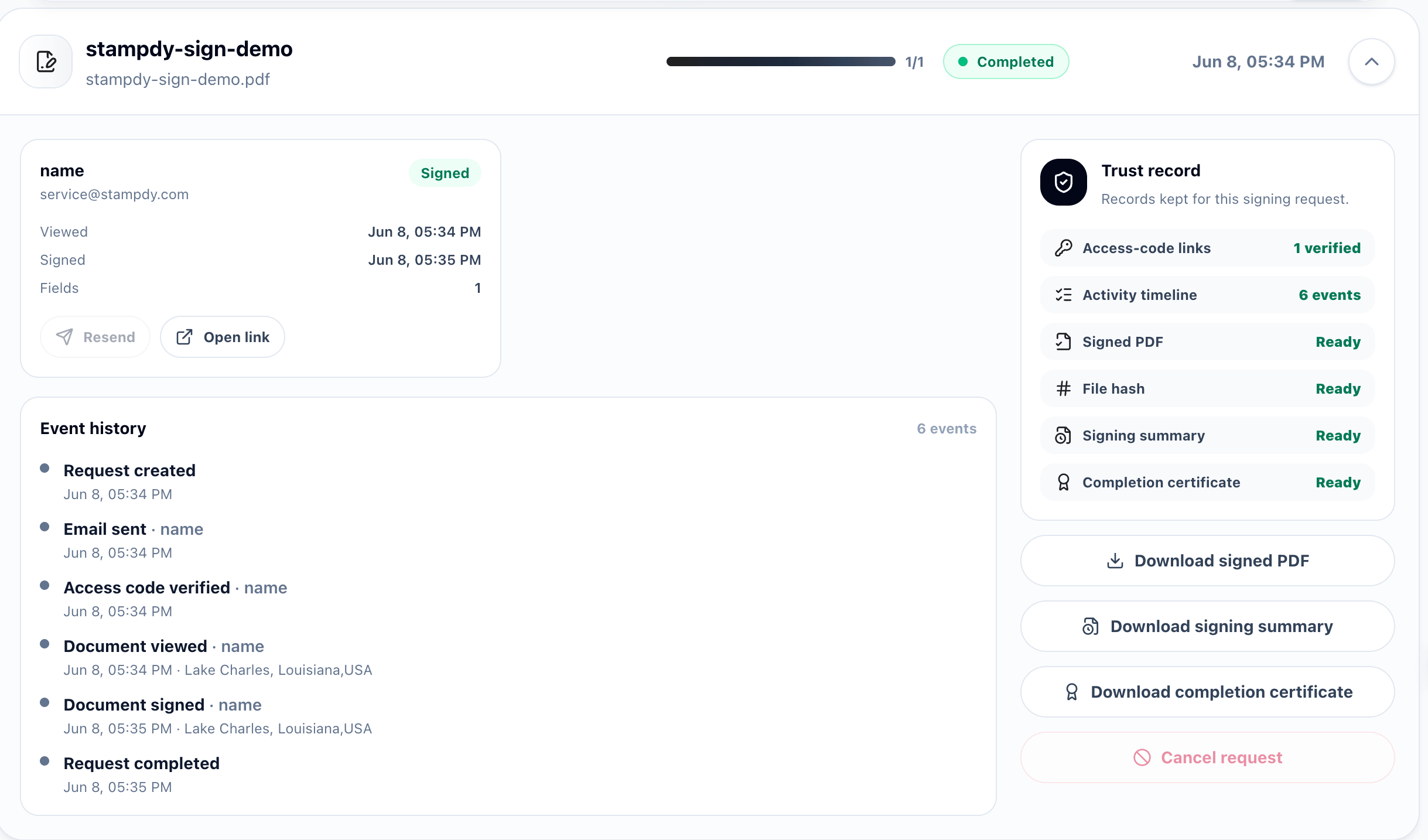
Do Not Stop At The Drawing Pad
If a tool only creates a signature image, your team still has to manage the rest by hand. That may be fine for a one-off document. It gets messy when contracts, HR forms, vendor approvals, or client signoffs arrive every week.
Start by asking whether the tool can support the actual path: upload a PDF, define who signs, send the request, and review the result. The Stampdy signature workflow is built around that path, so the signature generator is connected to the document instead of floating separately from it.
Approval work is full of tiny dependencies. A PDF may need a company stamp, a signer name, a deadline, and a final copy. If each part lives in a different place, the sender becomes the system, and that does not scale well.
The Signature Is Only One Visible Moment
People often judge a signature generator by the signature itself: does it look smooth, does it fit the page, does it feel close enough to handwriting? Those details matter, but they are not the whole job. In a PDF approval flow, the signature is one visible moment inside a longer chain of decisions.
Think about a vendor approval form. Procurement prepares the file, finance checks the amount, legal may review terms, and a manager signs. The signature generator touches the final action, but the document also needs the right file name, the right fields, a clean approval stamp, and a way to retrieve the signed copy later. If those pieces are weak, a nice-looking signature does not save the workflow.
I would look at the surrounding habits before choosing or using any tool. Does the sender know which PDF is current? Can the signer tell what they are approving? Is the final version easy to download? Can the team prove the signed copy is complete? These questions are less exciting than signature style, but they matter more in daily work.
The same thinking applies to simple internal documents. A leave approval, a policy acknowledgment, or a small purchase authorization can still create confusion if it is sent casually. A signature generator should reduce that confusion, not hide it under a polished mark.
Keep Stamps In The Same Conversation
Many approval PDFs need more than a signature. They may need a "Reviewed" stamp, a company seal, a branch mark, or an internal routing stamp. A signature generator and a stamp maker solve different problems, but they often meet on the same page.
Use the Stampdy stamp maker for reusable marks instead of copying old images from previous PDFs. Create a clean stamp once, export it properly, and make sure the team knows which version is approved.
Then treat the signature step as the approval action. The stamp gives context. The signature records agreement. Keeping those roles separate makes the document easier to explain later.
Make The Sender's Job Smaller
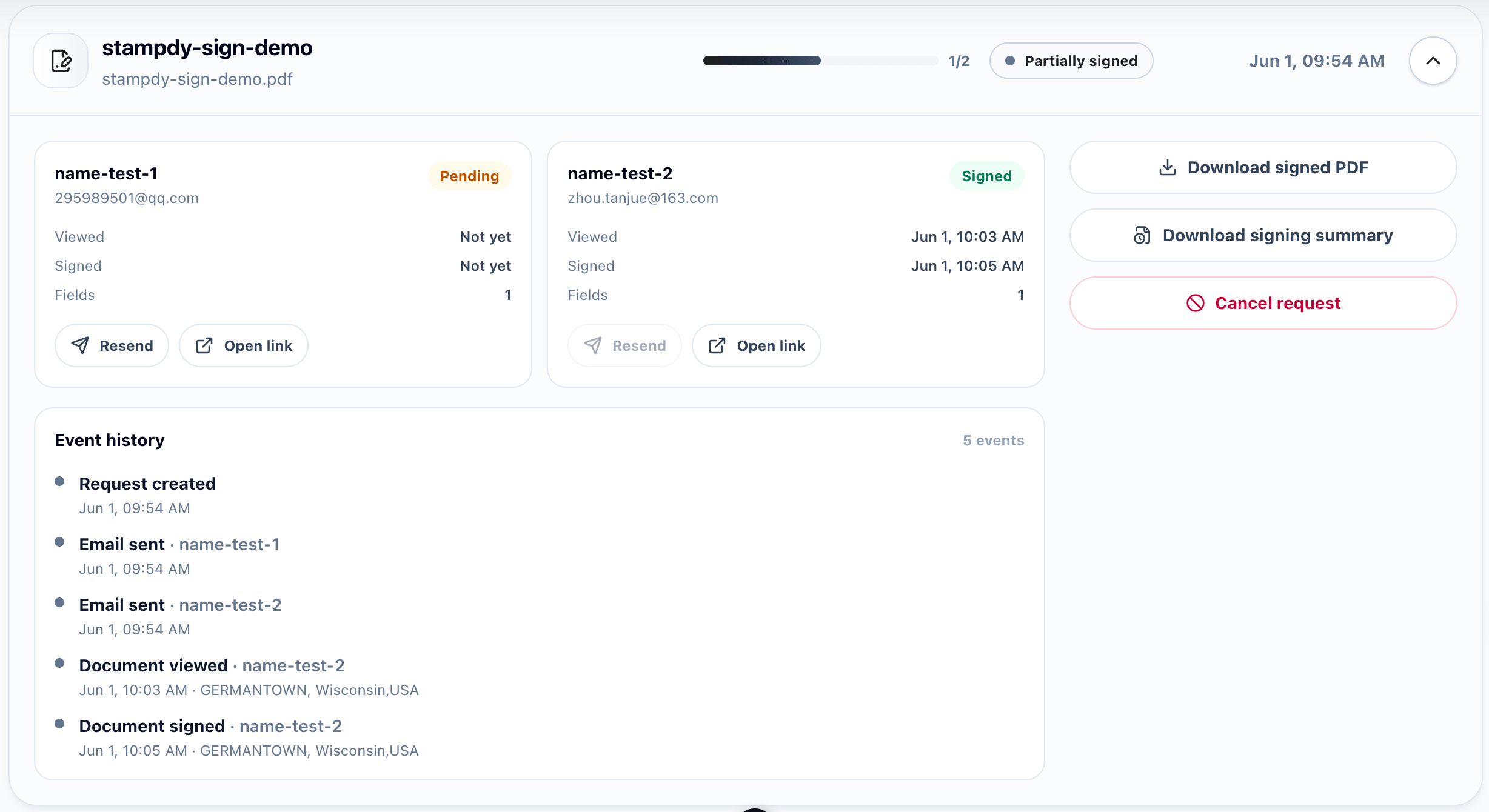
A good signature generator should make the sender's job smaller, not just make the signer's mark prettier. The sender has to prepare the PDF, choose the right person, place the field, send the request, answer questions, and store the result. If the tool only helps with one of those steps, the rest of the process still depends on memory.
One way to reduce that burden is to create repeatable patterns. For example, vendor agreements always use the same signature area, the same approval stamp position, and the same file naming rule. HR acknowledgments always include the employee name and policy date. Internal approvals always include the department and requester. These patterns are not fancy, but they prevent the sender from reinventing the request every time.
This also makes training easier. When a new teammate sends their first document, they can follow the pattern instead of asking for a private lesson. They know which stamp to use, where the signature goes, and how the final PDF should be named. A signature generator becomes much more useful when it sits inside that kind of simple routine.
If the team is growing, these patterns matter even more. A process that works for one careful sender may fall apart when five people send documents in slightly different ways. Standardizing the boring parts protects the final record.
Do Not Confuse Drawing With Signing
There is also a language problem worth watching. People sometimes use "signature generator" to mean a tool that draws a signature image. Other times they mean a full signing request that captures approval on a PDF. Those are related, but they are not the same.
If you only need a signature-style mark for a mockup or a non-binding internal note, a simple generator may be enough. If you need a client, vendor, employee, or manager to approve a real document, you need the request flow around the signature. That includes who signed, what they signed, and where the completed PDF lives.
The same distinction helps with stamps. A stamp image can make a document look organized, but it should not be treated as proof of consent. The signature records the person's action. The stamp adds document context. Keeping that distinction clear makes the record easier to defend later.
Compare The Finished Record, Not Just The Input
After the first few requests, look at the finished PDFs rather than only the setup screen. The completed record is what the team will rely on later. Does the signature look correctly placed? Is the stamp readable? Does the file name match the document? Can someone tell whether the request is complete without opening a separate message thread?
This review is useful because a signature generator can feel successful at the moment of sending while still producing a messy record. The sender may have placed the field correctly, but the final PDF might make the page look crowded. The signer may have completed the request, but the signed file might land with a vague name. These are not reasons to abandon the workflow. They are reasons to refine it.
I would make this review especially after changing a template, adding a new stamp, or asking a new team member to send documents. New patterns need one real-world check before they become habits. If the first completed copy looks clean, keep going. If it does not, fix the source before the same issue appears in every future approval.
Handle The Small Edge Cases On Purpose
Every team has edge cases. A signer asks for the PDF to be resent. A manager wants to sign after a client instead of before. A document needs a stamp on one page and a signature on another. A vendor changes its legal name after the draft was prepared. These cases do not need a complex system, but they do need a decision that someone can repeat later.
I would write down the answer the first time an edge case appears. If a signer changes, create a new request instead of editing the signed record. If a stamp was wrong, fix the source stamp and resend the PDF rather than covering the mistake with another mark. If the document name changes, update the final file name so the record is searchable. Small decisions like these keep the signature generator from becoming a patchwork of exceptions.
This is also useful for support. When a teammate asks what to do, the answer should not depend on who happens to be online. A short note about resend rules, stamp corrections, and final file names can save a surprising amount of back-and-forth.
Give The PDF One Last Human Check
Before sending any approval PDF, open it as if you were the signer. Check whether the signature field is visible, the stamp is not covering text, and the document name describes the content. If the file is part of a batch, add enough detail so the signer can distinguish it from the next request.
For legal-sensitive workflows, link the team to the electronic signature legality guide so expectations stay realistic. A tool can make signing easier, but teams still need to understand their own policy and local requirements.
A signature generator is doing its job when nobody has to talk about it much. People know where to sign, managers know what was sent, and the final PDF does not need a detective story attached to it. Reaching that point means looking beyond the first attractive signature preview and testing how the tool fits the work around it.
Begin With The Document You Send Most Often
Feature lists make every signature generator sound capable. A real document reveals more. Choose one ordinary PDF your team sends regularly, such as a service agreement, employment acknowledgment, vendor form, or creative approval. Use a safe sample rather than an active confidential file, then walk it through the entire process.
Prepare the PDF the way a teammate would on a busy afternoon. Add the signer, place the field, write the request, complete it from another device, and download the result. Notice where you pause. Does the signature fit the existing block? Is it obvious whether the signer should also enter a date or title? Can the sender tell when the request is finished? Does the completed filename make sense outside the tool?
This exercise separates useful capabilities from attractive extras. A team that sends one-page approvals may value speed and mobile clarity. A team handling multi-party contracts will care more about signer order, field ownership, status tracking, and final records. Neither team learns much from trying twenty signature styles on a blank canvas.
Include any normal stamp maker step in the test. If finance adds a review stamp before signature, use the actual approved sample. If the company seal belongs near the final signature, check the spacing in the completed PDF. The test should resemble the work, not a product demonstration.
Let People Choose A Signature They Can Recognize
A generated signature does not need to imitate a piece of calligraphy. It needs to feel acceptable to the person using it and remain readable at the size available on the document. Some people prefer to draw. Others are more comfortable with a typed style or an uploaded mark they already use. The best option is the one the signer can choose deliberately without feeling rushed.
Give the signer enough preview space to see the result, but do not make style selection the center of the request. On a business document, the act of reviewing and agreeing matters more than whether the capital letter has a dramatic loop. A simple signature that fits the field is often better than an elaborate one that covers a label or extends beyond the line.
Names vary in length and script. Test long names, initials, hyphenated names, and names that do not fit a narrow Western-style block. The field should adapt without shrinking the mark into a thin blur. If the signature generator supports different input methods, the page should explain them through clear controls rather than forcing everyone into one visual convention.
The signer should also have a chance to correct the mark before applying it. A shaky touch input, accidental tap, or poor upload should not become part of the document simply because the next button was easy to hit.
Make Every Field Belong To Someone
Multi-signer PDFs become confusing when fields look identical to the sender. A contract may need a client signature, an internal countersignature, two dates, titles, and initials on a schedule. If field ownership is wrong, the first signer may see the second person's action or the request may stall after an incomplete step.
Assign each field while thinking in roles, not colors alone. Say "customer signer," "company signer," and "finance approver" in the setup note. Confirm the order in which they act and what should happen if one person declines or becomes unavailable. If the order does not matter, avoid imposing a sequence that delays everyone unnecessarily.
Open the request from each signer's point of view during the first test. The customer should not see internal-only instructions. The manager should not be asked to fill the customer's company title. Required fields should be genuinely required; optional fields should not block completion.
For complex documents, keep the signature areas visually grouped. A signer name, title, signature, and date belong together. Scattering them across the page makes both completion and later review harder. A stamp should sit outside that group unless it directly identifies the same signing party.
Use Reminders With Restraint
Reminders are useful when a request was overlooked. They are irritating when the signer is waiting for an answer, negotiating a term, or out of office. Before sending another reminder, check whether the business conversation has changed.
Set expectations in the original message. A clear deadline and reason make a later reminder feel reasonable. "We need the signed vendor form by Thursday to keep the Friday payment run" is more helpful than a generic urgent label. If the deadline changes, tell the signer rather than increasing reminder frequency.
For internal approvals, decide who follows up. If both the tool and three teammates send reminders, the signer receives noise instead of clarity. One owner should see the request status and choose when a personal note is needed.
Cancel reminders when the document is replaced or no longer required. An obsolete signature request that continues emailing a customer makes the company look disconnected. Keeping the pending list clean is part of using a signature generator responsibly, not a separate administrative chore.
Test The Small-Screen Experience
The sender may work on a wide monitor, but many signers will use a phone. They may be standing in an airport, sitting between meetings, or opening the request from an email notification. The document still needs to communicate what it is and where action is required.
Use a sample phone to complete the test. Check whether the PDF opens at a readable scale, whether the signature field can be reached without losing context, and whether drawing or selecting a signature feels controlled. Long documents should make progress understandable. Buttons should not cover the page or require precise tapping near the screen edge.
Pay attention to supporting fields. A title or date input that appears beside the signature on desktop may fall below it on mobile. The signer should know that those fields belong to the same block. Error messages should identify what is missing instead of sending the person back through the whole document.
Stamps need this check too. At phone size, a detailed company seal may become a dark circle with no readable text. That may be acceptable if the mark is supported by the surrounding record, but it should not cover content or be mistaken for a signature field. Review the finished page at normal mobile scale before making the template standard.
Build Templates From Clean Sources
Once a request works, save the source pattern without turning a completed PDF into the template. The reusable starting point should contain current document language, clear blank areas, and stable labels. It should not contain a previous person's signature, personal details, completion date, or flattened approval stamp that may not apply next time.
Keep document content and request setup connected through a short note. Record which source file is current, where fields belong, which stamp maker asset is used, and who normally signs. If the underlying document changes, review the field placement and note before sending again.
Templates should remove repeated decisions, not freeze mistakes. Give them an owner and a review trigger. A legal wording change, brand update, department rename, or recurring signer question is a reason to inspect the template. The calendar alone does not need to force constant redesign.
Archive replaced templates clearly. Leaving old and new versions side by side in the active folder creates the exact uncertainty the template was meant to remove. A dated archive preserves history while keeping the ordinary path obvious.
Pay Attention To Declines And Questions
A smooth completion is not the only outcome a signature workflow needs to handle. A signer may decline because the name is wrong, a commercial term changed, the wrong person received the request, or they need an accessible format. That response should return to a real owner who can decide what happens next.
Do not immediately resend the same PDF. Read the reason, confirm the source document, and fix the underlying issue. If a different signer is required, create a clean request with the correct person. If a clause is disputed, return the document to negotiation rather than using the signature tool as a messaging channel for contract changes.
Questions are equally useful. When several signers ask why a stamp is already on the page, explain the internal review role in the request or adjust the document label. When people ask whether a typed signature is acceptable, give the team a consistent answer based on the document type and applicable policy.
A signature generator should make exceptions visible, not bury them. The sender needs to distinguish waiting, completed, declined, canceled, and replaced requests. Those states tell the operational story more accurately than a simple list of files.
Inspect What You Keep After Completion
The long-term value of the process is the completed record. Download a finished sample and open it outside the signature workspace. Check page order, field placement, names, dates, stamp quality, and any completion information provided with the request. Someone who was not part of the original exchange should be able to understand what happened.
Give the file a useful storage name if the downloaded default is too vague, but do not alter the signed content. Store it in the business system that owns the relationship: the contract folder, employee record, vendor account, project approval, or customer workspace. The sender's downloads folder is only a temporary stop.
Think about retrieval before volume grows. Searching by counterparty, document type, and signed date should lead to one clear final record. Drafts and canceled versions can remain available where policy requires, but they should not look active.
Review a handful of completed requests after the first month. If signatures are consistently cramped, change the source block. If stamps look inconsistent, standardize the export and placement. If final files cannot be found, fix the handoff after completion. These changes are where the signature generator begins to save real time.
The practical standard remains simple. A person can create or choose a signature they recognize, apply it to the right document with clear intent, and receive a finished copy. The team can see the request status and retrieve the final PDF without reconstructing an old email conversation. Everything else should support those outcomes.