Digital Signature Checks I Would Make Before Sending a PDF
Digital signature mistakes usually happen before the signer sees the document. The PDF is almost right. The filename is vague. The signature box sits too low on the page. Someone used an old approval stamp because it was the easiest file to find.
None of that is dramatic, but it wastes time. Before sending a digital signature request, I would give the PDF one focused review and check every visual element on the page, including any stamp created with a stamp maker.
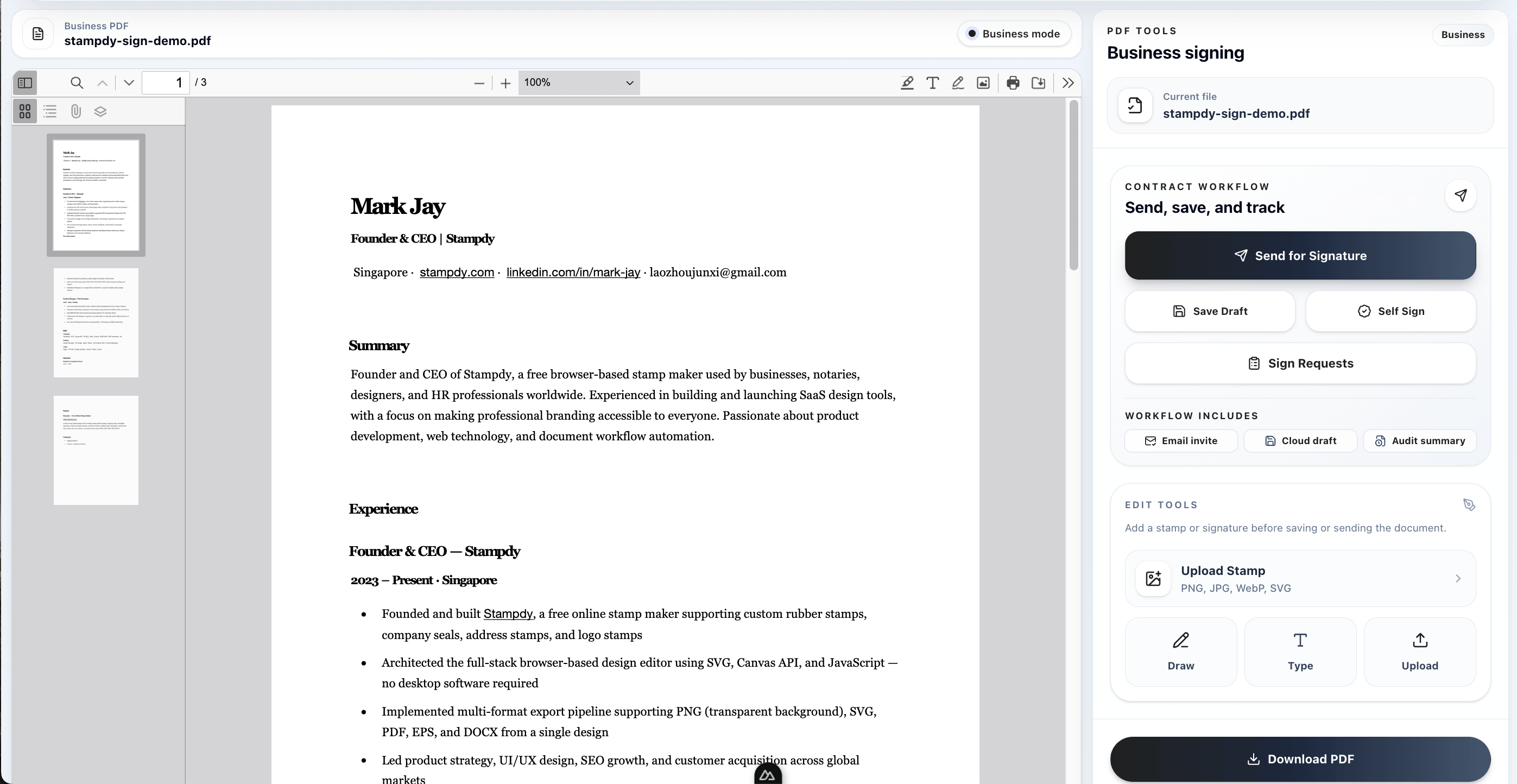
Read The PDF Like The Signer Will
Open the file from top to bottom. Do not jump straight to the signature page. Look at the document title, parties, dates, totals, page count, and any blank areas that might make the signer pause. If a page was added late, check that page numbers and references still make sense.
The PDF review workspace is useful here because the person sending the request can catch layout problems before the signature step begins. A clean PDF makes the digital signature feel routine instead of risky.
If the file includes a stamp, check it at normal zoom. A stamp maker can create a sharp asset, but the final PDF still needs a human eye. Make sure the stamp does not cover contract text, table totals, signer names, or legal wording.
Check The Parts Nobody Wants To Check
The boring parts of the PDF deserve attention because they are where digital signature rework usually begins. Check the footer. Check the page count. Check the attachment references. Check whether the document mentions "Exhibit A" when no exhibit is attached. If the PDF came from a Word file, check whether the conversion shifted a table or pushed a signature line onto the next page.
I would also look for stale language. Draft PDFs often carry old dates, old pricing, or a note that was supposed to be removed before signature. The signer may not catch it, especially if they trust the sender. That makes the sender's review more important, not less.
For documents that use a stamp, check whether the stamp still belongs on this version. A reused "Approved" mark can be misleading if the document changed after approval. If the stamp reflects an internal step, make sure that step actually happened. A stamp maker can help create a clean mark, but it cannot decide whether the mark is appropriate for the file.
One practical habit is to read the file name out loud before sending. If it sounds vague, rename it. "Vendor Agreement - Northline - unsigned - June 2026" tells the team much more than "agreement clean final 2.pdf". The signed copy should also have its own clear name later, so nobody confuses it with the draft.
Confirm Who Is Actually Signing
Most digital signature friction comes from unclear roles. Who signs first? Does the sender also need to sign? Is the signer approving content, acknowledging receipt, or confirming a completed service? Use plain names instead of internal shorthand.
In Stampdy, the signature request flow helps keep this organized, but the sender still needs to choose the right people and fields. Put the signature box where the signer expects to act. If there are initials, dates, or multiple signers, keep spacing consistent.
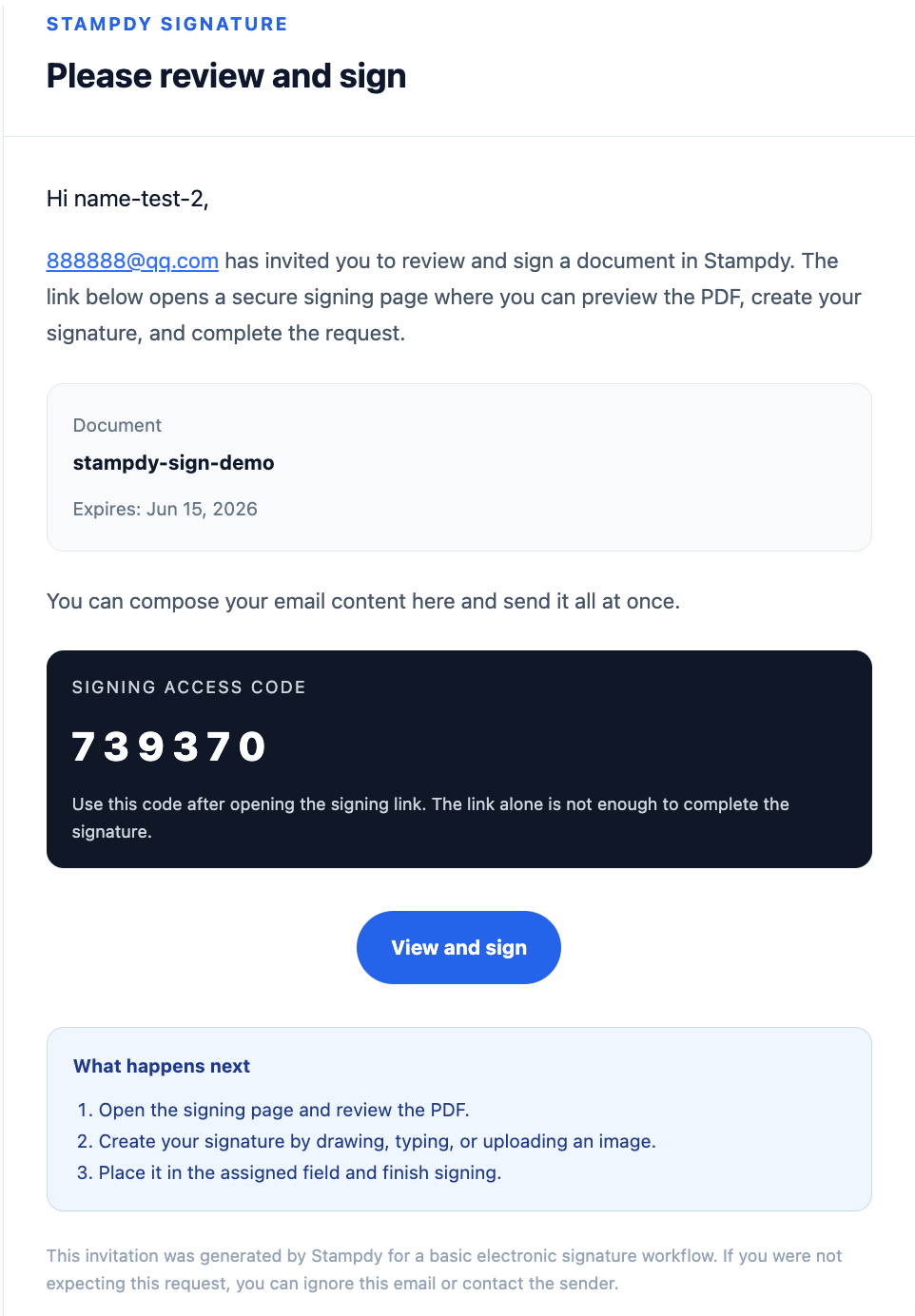
A practical rule: if the signer has to ask where to click, the document was not ready. That is not a tool problem. It is a preparation problem.
Give Signers A Little Context
A digital signature request should not arrive as a mystery attachment. The signer should know why they are receiving it, what they are expected to do, and whether there is a deadline. The message does not need to be long. In fact, shorter is usually better. One or two plain sentences can prevent a lot of hesitation.
For example: "Please sign the attached service agreement after confirming the start date and billing contact. We need the signed copy back by Thursday so onboarding can begin Monday." That tells the signer what to check and why the timing matters. It is much better than sending a blank request with no context.
If there are multiple signers, context becomes even more important. A finance manager may be approving payment terms. A department lead may be confirming scope. A client may be accepting the agreement. Those people should not all receive the same vague message if their responsibilities are different.
This is also where access and identity details matter. If the signer receives a verification code, tell them to expect it. If a signer is traveling or likely to use a mobile device, keep the signature fields simple and obvious. A clean request respects the signer's time.
Keep The Internal Review Separate From The Signature
Do not use the digital signature step as the place where everyone finally reviews the PDF. That is too late. Internal review should happen before the request goes out. The signature step is for approval or acceptance, not for discovering that the document still has comments in the margin.
For recurring workflows, I would keep a pre-send checklist near the team's working folder. It can be short: current PDF, correct signer, correct fields, approved stamp, final file name, storage location. The list is not there to slow people down. It is there so a busy sender does not have to remember every detail from scratch.
This is especially useful when more than one person sends documents. Without a shared checklist, each sender develops a private version of the process. One person checks stamp placement. Another checks signer roles. Another checks file names. The team only notices the gaps when something goes wrong.
Watch The First Completed Copy
The first signed copy tells you whether the setup worked. Open it after completion. Check whether the signature landed where expected, whether the stamp still looks clean, and whether the signed PDF name makes sense. This is not busywork. It is the fastest way to catch a weak workflow before it repeats across ten more documents.
If the completed copy looks good, keep the pattern. If it looks awkward, adjust the template or checklist before the next send. For example, maybe the signature field needs more space. Maybe the stamp should move below the review line. Maybe the message should tell signers to check the service date before signing. Small fixes made early save a lot of resend work later.
I would also ask whether the final document can be understood without the email thread. A signed PDF should not depend on a private conversation to make sense. The document, stamp, signature, date, and filename should carry enough context on their own.
This check is especially helpful for documents that may be forwarded later. A signed vendor form, school permission PDF, or customer approval can leave the original conversation quickly. If the document stands on its own, the team does not have to explain the same background every time it is shared.
That independence is easy to underestimate until the wrong person has to answer a question weeks later.
Keep The Stamp With The Signed Record
After the digital signature is complete, save the signed PDF in the same place the team uses for final records. If the stamp is part of the document system, keep the approved stamp asset nearby or in a shared library. Future teammates should not have to recreate it by sight.
For recurring documents, connect the stamp process to the Stampdy stamp maker once, then reuse the export. This keeps the signing workflow from drifting as different people prepare files.
The point is not to make every PDF perfect. The point is to remove avoidable surprises before the signer is involved. Five minutes of review can save a full day of resend messages, confused approvals, and duplicated records.
What To Fix After A Resend
If a document does need to be resent, do not treat it as a one-time annoyance. Ask why it happened. Was the PDF wrong? Was the signer confused? Was the stamp outdated? Was the wrong person selected? The answer should lead to a small adjustment in the process.
A resend caused by a typo may not require a new system. A resend caused by unclear ownership probably does. If the same mistake appears twice, write down the rule that would have prevented it. That is how a digital signature workflow gets better without becoming heavy.
The goal is not a perfect audit manual. It is a calmer sending habit. A sender should know what to check, a signer should know what to do, and the final PDF should land in the right place with the right stamp attached to the story. A few additional controls make that habit hold up when the documents become more important or the team becomes busier.
Know What You Mean By Digital Signature
Teams often use the phrase digital signature for several different things. One person means a handwritten-looking image placed on a PDF. Another means an electronic signing request with a completion record. Someone in security may use the phrase for a certificate-based cryptographic signature. Those uses overlap in everyday conversation, but they do not carry identical evidence or technical properties.
Before choosing a workflow, agree on what the document requires. A routine internal acknowledgment may only need a clear electronic action tied to a person and a final PDF. A regulated filing, government submission, or high-value agreement may have more specific identity, certificate, retention, or jurisdiction requirements. The visual appearance of the signature does not answer those questions.
Use precise language in internal notes when the distinction matters. Say whether the team is sending an electronic signature request, applying a certificate-based digital signature, or simply preparing a signature image. If legal validity or a particular signing standard is important, confirm it with the appropriate legal or compliance owner instead of relying on a feature label.
This clarity also helps support conversations. When a signer says, "I cannot use a digital signature," ask what restriction they mean. Their organization may require a certain platform, an ink signature, a certificate, or an internal approval step. Understanding the real constraint is faster than arguing about terminology.
Match Identity Checks To The Risk
Not every document needs the same level of identity assurance. Sending a low-risk internal form to a known work address is different from signing a high-value agreement with a new external party. The process should reflect that difference without making ordinary paperwork unnecessarily difficult.
Start with the basics: confirm the signer's correct email address, full name, role, and authority to sign. Do not assume that the person who negotiated the document is authorized to execute it. For external agreements, the business owner should know why this person is the signer. For internal documents, the sender should avoid generic shared inboxes unless the workflow is designed for them.
If verification codes or additional checks are used, tell the signer what to expect without sharing the code through an insecure channel. A confused signer may forward the request or ask an assistant to complete it. A clear message reduces that risk. For sensitive work, confirm unusual changes in signer identity through a known contact route rather than replying blindly to a new address.
More verification is not always better. Excessive steps can push people toward workarounds, especially on mobile. Use controls that match the consequence of a mistaken signature. The point is reasonable confidence, not friction for its own sake.
Check Authority As Well As Identity
Knowing who clicked the signature field is only part of the problem. The person must also have authority to make the decision represented by the document. A department employee may be the right operational contact but the wrong contract signer. A project manager may approve delivery details but not pricing. A customer contact may coordinate the deal while an officer signs the final agreement.
Put signer authority into the preparation step. For recurring counterparties, keep a note about the normal signing role, but recheck when the document value or type changes. An authorized signer for a routine order may not be authorized for a long-term service agreement.
Internal approval and external signature should be easy to distinguish. An "Approved" stamp from finance can show that a review occurred, but it does not automatically grant the customer-facing signer authority. Likewise, the external signature does not prove that every internal department approved the deal. The PDF and surrounding record should show each role without blurring them together.
If authority is uncertain, pause before sending. It is easier to confirm the right person now than to explain later why a completed digital signature request went to someone who could not bind the organization.
Freeze The PDF Before Fields Are Added
Once signature fields are placed, editing the underlying PDF creates avoidable risk. Text can move while the field stays in its old position. A new page can change page references. A corrected table can cover a stamp or push the signature block into a crowded area.
Treat field placement as the moment the content is frozen. Complete drafting, negotiation, internal review, and stamp placement first. Export the final PDF, give it a useful name, and then add signer fields. If the document changes afterward, create a new PDF and inspect the fields again instead of assuming they still align.
For recurring templates, this rule prevents a subtle kind of drift. Someone edits the Word source, exports a slightly different layout, and reuses field coordinates from the previous version. The request still works technically, but the signature lands beside the wrong label or on the next page. A quick visual check of the frozen PDF catches that problem.
Keep a clean source document for future edits and a separate unsigned PDF for the current request. Do not keep modifying the exact file that is already moving through signature. Clear stages make it easier to explain which content was reviewed and which content was signed.
Check Attachments And References Together
Many agreements refer to schedules, exhibits, policies, price sheets, or statements of work. The main PDF can look perfect while the referenced attachment is missing or outdated. A signer may complete the request without realizing that a referenced page was never included.
Search the document for words such as exhibit, appendix, schedule, attachment, and incorporated. Confirm that each referenced item is present and clearly labeled. If several files belong together, decide whether to combine them into one PDF or explain the packet in the request message. The signer should know whether one action covers all included material.
Check version dates across the packet. A June agreement paired with a January price schedule may be intentional, but it should not be accidental. Page numbering, document titles, and party names should agree. If a stamp appears on an approval page, verify that it relates to the same packet, not an earlier draft.
After completion, store the attachments with the signed record. A signature page separated from the terms it approved is a weak operational record even when the signing action itself was captured correctly.
Run A Test Before A High-Volume Send
If the team is about to send the same form to dozens of employees, vendors, or customers, do one internal test first. Use a harmless sample or an authorized test recipient. Complete the request on both desktop and mobile if those are common signing paths.
The test should cover the whole experience. Does the email subject identify the document? Does the verification step make sense? Are all fields assigned to the right person? Can the signer move through the PDF without missing a required item? Does the completed copy preserve the stamp and layout? Is the downloaded filename usable?
A test is especially valuable after a template change. A new paragraph can shift fields. A redesigned stamp can become unreadable at the final size. A new signer order can leave the second person waiting without context. Finding these issues once is far cheaper than supporting them across a large batch.
Record the corrections in the template or checklist, then send the real requests. Do not rely on the test recipient to remember a workaround and explain it to everyone else. The production path should stand on its own.
Make Cancellation And Expiry Understandable
Pending requests do not stay relevant forever. A candidate accepts another offer, a vendor changes its quote, a contract is replaced during negotiation, or a manager leaves the organization. Old requests should not remain active without an owner or explanation.
Decide who can cancel a request and when they should do it. If the document has been replaced, cancel the old request before sending the new one and give the new PDF a distinguishable name. Tell the signer to ignore the earlier request so they do not complete both.
If requests expire, set a period that matches the work. A short-lived quote may need a shorter window than an annual policy acknowledgment. Send reminders with judgment. Repeated automated reminders for a document that is no longer needed make the system less trustworthy.
Keep cancellation separate from deletion. The team may still need to know that a request existed, why it stopped, and which request replaced it. A short note in the related business record can preserve that context without keeping obsolete documents in the active signing queue.
Treat The Completed PDF As A Controlled Record
After a digital signature is complete, the PDF should become less editable, not more. Save the completed file as received from the signing flow. Do not open it in an editor to fix spacing, replace a stamp, or rename text inside the document. Corrections should produce a new documented version, not an invisible alteration to the signed copy.
Use a storage location with appropriate access, backup, and retention for the type of document. HR records, contracts, customer approvals, and routine internal forms may belong in different places. The signature tool can show request status, but the long-term record should fit the team's broader filing practice.
Capture enough context to retrieve it later: document type, parties, signed date, business owner, and any renewal or follow-up date. The filename can carry some of that information. A contract or HR system may carry the rest. Avoid relying on the sender's inbox as the only index.
If the document includes a mark built with a stamp maker, keep the approved source asset and its ownership note in the relevant asset library. You do not need to duplicate the stamp beside every signed PDF, but the team should be able to explain what the mark meant at the time.
Review The Workflow After Real Questions
The best feedback often comes from ordinary signer questions. "Is this the latest version?" suggests a naming or request-message problem. "Do I need to fill this date?" suggests unclear field assignment. "Why is there already an approved stamp?" suggests the internal review status is not explained. These questions are evidence about the workflow, not annoyances to dismiss.
Collect them for a month and look for repetition. Change the source document, field label, or message where that will remove uncertainty. If a question is specific to one unusual agreement, answer it directly rather than adding permanent instructions to every request.
Also listen to the people who prepare and archive the PDFs. They may notice that completed files download with vague names, that stamp assets are hard to find, or that canceled requests remain mixed with active work. Signers see the front of the process; operations sees whether the record remains useful afterward.
A reliable digital signature workflow is built from these small corrections. The team freezes the right PDF, confirms the right person and authority, makes the action easy to understand, and protects the completed copy. When those habits are in place, signing becomes a short step in a well-run document process instead of a last-minute gamble.