Signature Generator Workflow for PDFs With Multiple Signers
A signature generator becomes a workflow tool when more than one person must act on the same PDF. The difficult part is rarely creating a handwritten-looking mark. It is controlling the document version, assigning the right field to each person, setting a realistic deadline, monitoring partial completion, and retaining one final record that everyone recognizes.
This guide covers that complete process. It assumes the document terms and signing authority have already been reviewed by the appropriate people. It does not assume that a generated signature image proves identity, consent, authority, or legal validity. Those questions require the surrounding controls and any rules that apply to the transaction.
Decide Whether Everyone Should Sign the Same PDF
Start by confirming that one document should contain all signatures. A shared PDF is useful when the parties are approving the same terms and the final record needs to show each signature in context. It is less suitable when recipients should see different information, when attachments vary by person, or when the workflow requires separate counterparts under a specific policy.
Identify every role before opening the setup screen:
- Document owner: controls the approved file and closes the request.
- Signer: completes an assigned signature field.
- Internal approver: confirms terms or authority before the request is sent.
- Observer or recipient of the final copy: needs the result but does not sign.
Do not add an approver as a signer merely to make the request list look complete. Likewise, do not omit a required signer because another person has already approved the document internally. The PDF and the organization's approval matrix should determine the roles.
Decide whether signing order matters. The current Stampdy setup assigns fields to recipients, but an organization may still have a business rule about sequence. If one party should sign only after another approval, document that rule and confirm that the chosen product workflow enforces or supports it. Do not imply a sequential control that has not been verified in the interface.
Freeze the PDF Before Opening the Signature Generator
The request should begin with a final approved PDF. Check the title, filenames, party names, dates, totals, attachments, page count, and any referenced schedules. Remove comments, tracked drafting notes, blank pages, and temporary placeholders unless they are intentionally part of the final record.
Give the file a version that the sender and reviewers can identify. A useful name describes the document and revision without exposing unnecessary sensitive data. Keep the editable source separate from the PDF being sent. If a term changes after setup begins, return to the approved source, create a new PDF, and replace the draft deliberately rather than editing around existing signature fields.
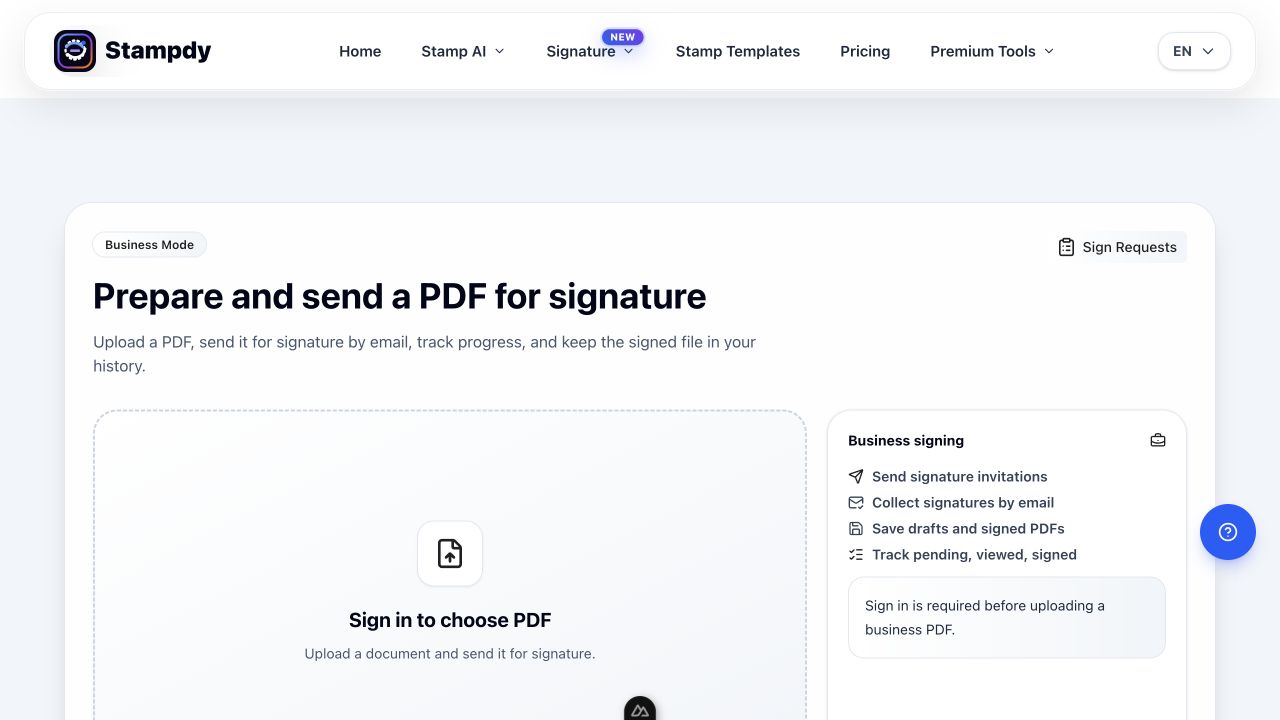
The Stampdy PDF workspace provides a Business Mode for preparing a PDF and sending it for signature. Before selecting “Send for Signature,” preview every page at a readable size. This is the last convenient point to catch a missing appendix or a stamp that covers important text.
If the organization uses an approval stamp, add it only after confirming that the person applying it is authorized and that the mark belongs on this version. A stamp can communicate workflow status, but it is not a replacement for a required person's signature.
Map Recipients to Fields Before Placing Anything
Write a simple field map before dragging boxes onto the PDF. For each signer, record the name, email address, page, signature location, and any internal note about authority. A field map prevents the setup operator from switching between the document and a separate recipient list while trying to remember who belongs where.
Use the labels printed on the document. If the page says “Customer,” “Supplier,” and “Witness,” map those roles explicitly. Do not rely on signer order alone, especially when two people work for the same organization or share similar names.
Check email addresses carefully. A typo can create delivery problems or expose an invitation to the wrong recipient. If the sender is already listed as a recipient, decide whether the sender should remain in that role or use the separate option for requester signing. The current Stampdy setup warns about this conflict rather than silently duplicating the person.
For a document with many recipients, group the review by page. Confirm all fields on page one, then continue to page two. This reduces the chance of placing a correct field on the wrong page after repeated scrolling.
Place Signature Generator Fields in Clear Context
Field placement should make the action obvious without hiding the agreement. Put the box next to the relevant name or role and leave enough space for the rendered signature. Avoid positioning it over body text, a date field, initials, page numbers, or another person's line.
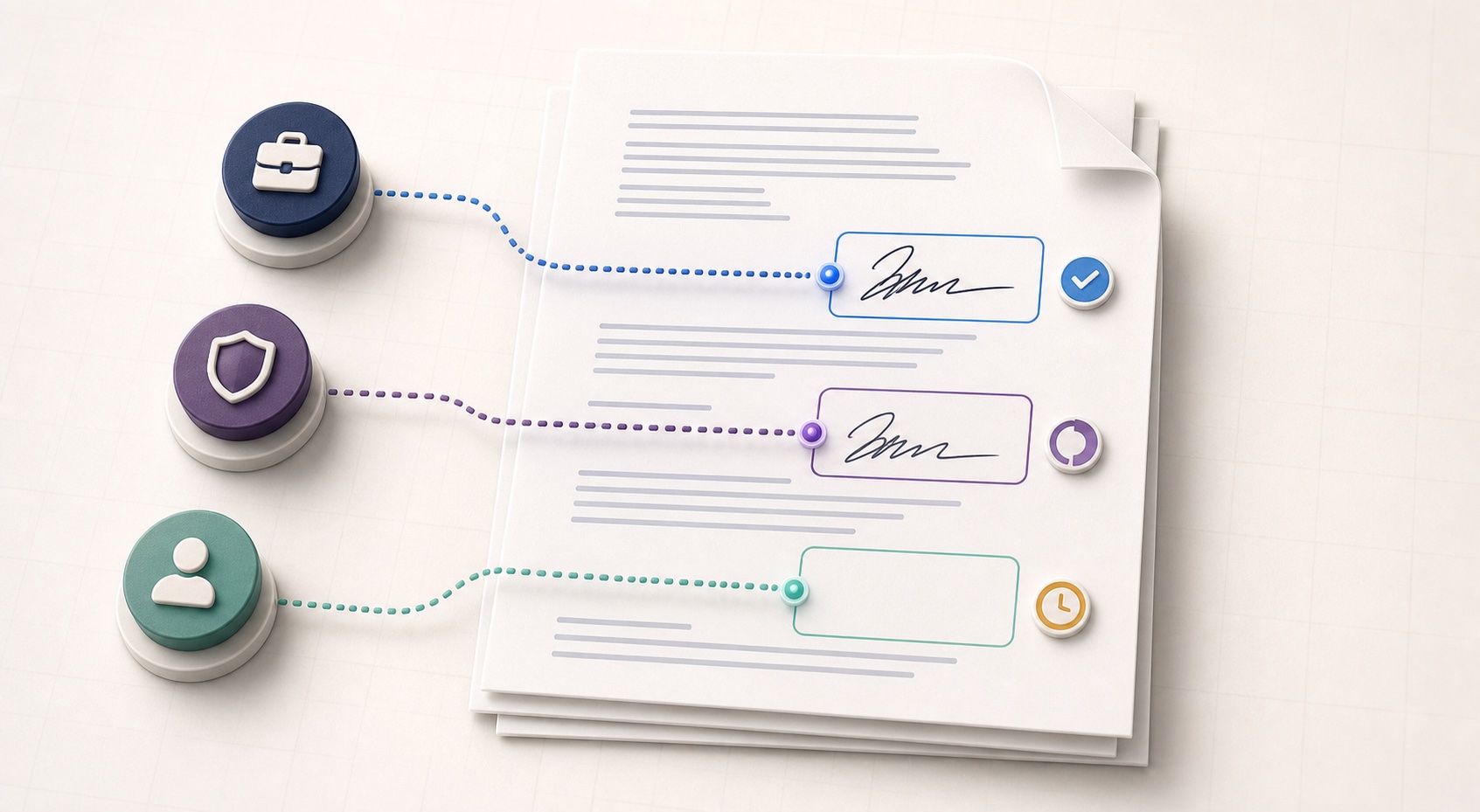
The Stampdy setup includes a PDF preview plus page, width, height, horizontal, and vertical placement controls. Use the preview for the visual decision and the values for fine adjustment. After moving a field, inspect it again at normal page scale. A box that looks precise while zoomed in may feel disconnected from its label when the whole page is visible.
Use consistent field sizes when the document design is consistent, but do not force identical dimensions onto different spaces. A narrow signature line in a form may need a different box from a full-width contract block. The practical test is whether the signer can act without guessing and whether the resulting mark remains legible.
Review every assigned field from the recipient's perspective. Ask: Can this person tell that the field belongs to them? Is the role printed nearby? Could the box be mistaken for an initials or date field? If any answer is uncertain, fix the document or placement before sending.
Configure Deadlines, Reminders, and Access Deliberately
Expiration and reminders should reflect the real decision timeline. The current Stampdy setup offers no reminder, every-three-days, and weekly reminder options, along with an expiration setting. Select the least intrusive schedule that still supports the deadline. A reminder cannot resolve a disputed clause or an absent approver, so do not use repeated email as a substitute for direct coordination.
Add a short message that names the document and expected action. If the recipient needs background, provide it through the approved communication channel before the request. The invitation message should not become a second version of the agreement.
Access codes can add a confirmation step before the signer views the PDF. Their usefulness depends on how the code is delivered and handled. Do not describe an access code as conclusive identity verification or a universal security guarantee. Match the control to the organization's policy and the sensitivity of the document.
Before creating the request, perform a final setup review: document title, recipients, email addresses, fields, sender participation, reminder, expiration, access option, and message. This review is faster than cancelling and rebuilding a request after the first recipient opens it.
Send, Then Track Partial Completion Without Guessing
After creation, monitor the request from the signature request tracker. Stampdy currently displays request-level states such as pending, partially signed, completed, expired, and cancelled, along with recipient details and event history.
“Partially signed” is a prompt to inspect the recipients, not a reason to assume who is blocking the process. Check which people have viewed or signed and whether an invitation needs attention. If a recipient says the link did not arrive, verify the email address and request status before resending.
Resend only while the request remains current. When terms change, cancel the old request and issue the approved revision. When a signer changes, document why and rebuild the recipient mapping as needed. Avoid leaving an old link active while telling recipients informally to ignore it.
Keep communication proportional. A pending request may simply be waiting for the agreed date. Contact the signer when the deadline, event history, or business context indicates a problem. Do not interpret a viewed status as acceptance or a lack of immediate signing as refusal.
If email delivery is inactive or fails in a local environment, distinguish the saved request from successful invitation delivery. The product can preserve a request even when delivery needs attention; the owner must verify which event actually occurred.
Handle Replacements and Exceptions Cleanly
Multi-signer workflows are vulnerable to version confusion because different people may act at different times. Set one replacement rule before sending: any material document change ends the current request. Do not paste a revised page into a partially completed file and continue as though all signers reviewed the same content.
For a corrected email address, verify whether the product supports changing the recipient on the existing request. If that behavior is not confirmed, cancel and create a new request. Record the reason in the system that manages the agreement.
If a signer lacks authority, pause the request. Replacing the person is an organizational decision, not a field-placement adjustment. Confirm the authorized replacement and whether earlier signatures can remain valid for the revised process.
Expired and cancelled requests should stay distinguishable from completed ones. Do not download an incomplete visual copy and store it in the final-contract location. Keep working records and completed records in separate folders or states.
For sensitive workflows, compare the available request controls and records with the Stampdy signature security overview, then apply the organization's own access, retention, and incident procedures.
Close the Multi-Signer Record
When every required signer has completed the request, download or retain the signed PDF and supporting summary required by policy. Confirm that the final file contains all expected signatures on the correct pages. A completed status is useful, but the document owner should still inspect the artifact.
Name the file consistently and store it in the approved location. Link it to the project, customer, employee, vendor, or transaction record that created the need for signature. Remove redundant downloads from personal folders when policy allows.
Then create the next business action. A signed agreement may activate a supplier, start a service period, release a payment, schedule an onboarding task, or create a renewal date. The signature generator workflow is closed only when the completed PDF and its consequence both have an owner.
Frequently Asked Questions
Can multiple people sign the same PDF in Stampdy?
The current setup supports adding multiple recipients and assigning signature fields to them. Review the field map and request behavior for your document before sending, especially when signing order or separate counterpart rules matter.
Should every signer receive the same reminder schedule?
Use the request options available and coordinate separately when a recipient has a different deadline. Do not create extra reminders simply because several people are involved. The reminder should support the agreed timeline.
What happens if the PDF changes after one person signs?
Treat a material change as a new document version. Stop the old request, confirm the revised PDF, and create a new request under the organization's approval rules. All required signers should act on the intended final content.
Does an access code prove the signer's identity?
An access code can be one part of an access process, but its strength depends on issuance, delivery, and handling. It should not be treated as universal proof of identity. Apply the identity controls required for the transaction.
Conclusion
A reliable signature generator workflow for multiple signers begins with one approved PDF and a clear role map. Place every field in context, review recipient details, configure timing deliberately, monitor actual events, cancel obsolete versions, and inspect the completed file. The generated mark is only one element; the controlled document, signer assignments, request history, and final handoff make the process usable.