SVG to Stamp Online Premium Tool Guide for Editable Vector Marks
The SVG to stamp online workflow is for people who already have vector artwork but need to make it behave like a practical stamp asset. Instead of flattening the file immediately or rebuilding it from a screenshot, Stampdy lets a member inspect top-level layers, hide unnecessary parts, apply a single ink color, adjust size and position, preview the result, and export an edited SVG or PNG.
This is a Premium Tool rather than a generative service. It does not invent a new logo or interpret a text prompt. It gives you direct controls over the structure the browser can read from the uploaded SVG. That makes it useful for preparing company logos, department marks, approval symbols, and other authorized vector artwork before final stamp layout.
Why SVG to Stamp Online Is a Premium Tool
The Stampdy SVG to Stamp editor is gated behind an active monthly or yearly Stampdy subscription. A visitor can see the product page, but must sign in so Stampdy can check access. If the account does not have an active subscription, the gate directs the user to the available plans.
Membership access matters because this tool is part of a broader group of Premium Tools rather than a one-time file conversion. The practical value is the editing workflow: parse the SVG, expose editable layers, preview changes, export in two formats, and hand the result to the regular editor without recreating the artwork.
Do not rely on an old article or screenshot that calls the editor free. The current access component is the stronger source of truth: active subscription access is required. Plan names, pricing, and included benefits may change, so check the current pricing page before deciding whether to subscribe.
Prepare a Compatible SVG Before Uploading
Use an SVG file that you are authorized to edit. Keep the original untouched, then create a working copy for stamp preparation. The tool accepts SVG files up to 4 MB and looks for editable top-level groups or shapes.
A useful source can contain paths, groups, text, rectangles, circles, and other common vector elements. Complex files may still need simplification. Embedded HTML, scripts, frames, objects, and external linked assets are not appropriate inputs. The browser-side parser removes or rejects risky or externally linked content, so an SVG that depends on a remote image or imported stylesheet may not look the same after loading.
Before upload, open the file in a trusted vector viewer and check:
- The document has a valid SVG root and sensible dimensions or viewBox.
- Required text and symbols are visible without remote assets.
- Important items are grouped at a level that can become editable layers.
- Fonts are available or converted appropriately for your workflow.
- Hidden design experiments are not mistaken for approved stamp content.
Keep a separate original because the stamp version may intentionally remove gradients, masks, small taglines, and decorative geometry. Preparing a stamp asset should not overwrite the master brand file.
How to Use the SVG to Stamp Editor
The tool follows an upload, inspect, edit, preview, and export sequence. Complete each stage before moving to the next so you can identify which change created a problem.
1. Sign in and confirm membership access
Open the Premium Tool and sign in. Stampdy checks whether the account has an active monthly or yearly subscription. If the plan has expired or been cancelled, renew or choose a current plan before editing.
This access check is separate from the SVG itself. A file does not become public or approved merely because it was opened in the tool. Your organization should still decide who may edit the source and who may approve the resulting mark.
2. Upload one SVG working copy
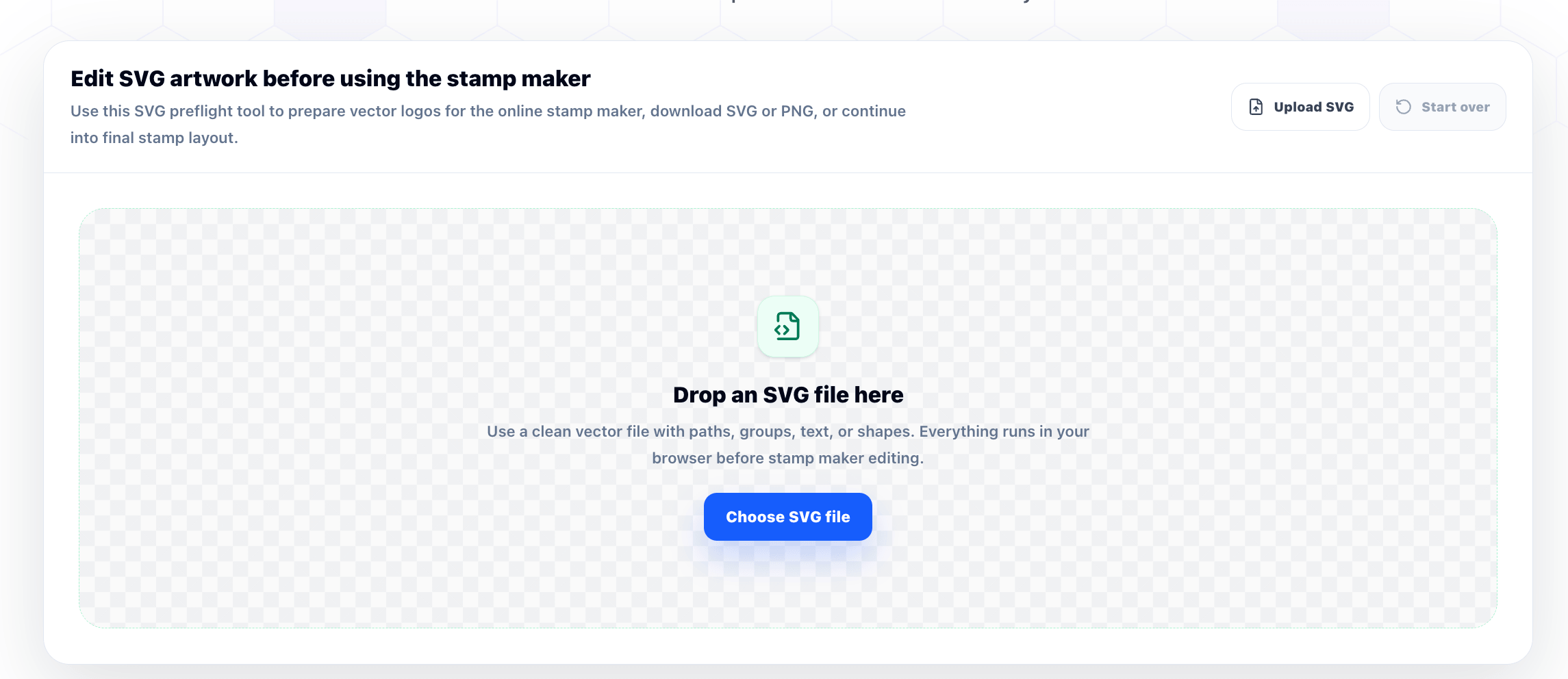
Drag the SVG into the upload area or choose it from the file picker. The editor reads the file in the browser, sanitizes unsupported or risky constructs, normalizes the SVG root, reads the width, height, and viewBox, and creates layers from eligible top-level elements.
If parsing fails, try a simpler SVG without embedded HTML or external assets. Do not repeatedly alter the master file. Export a clean working copy from your vector application, then upload that copy.
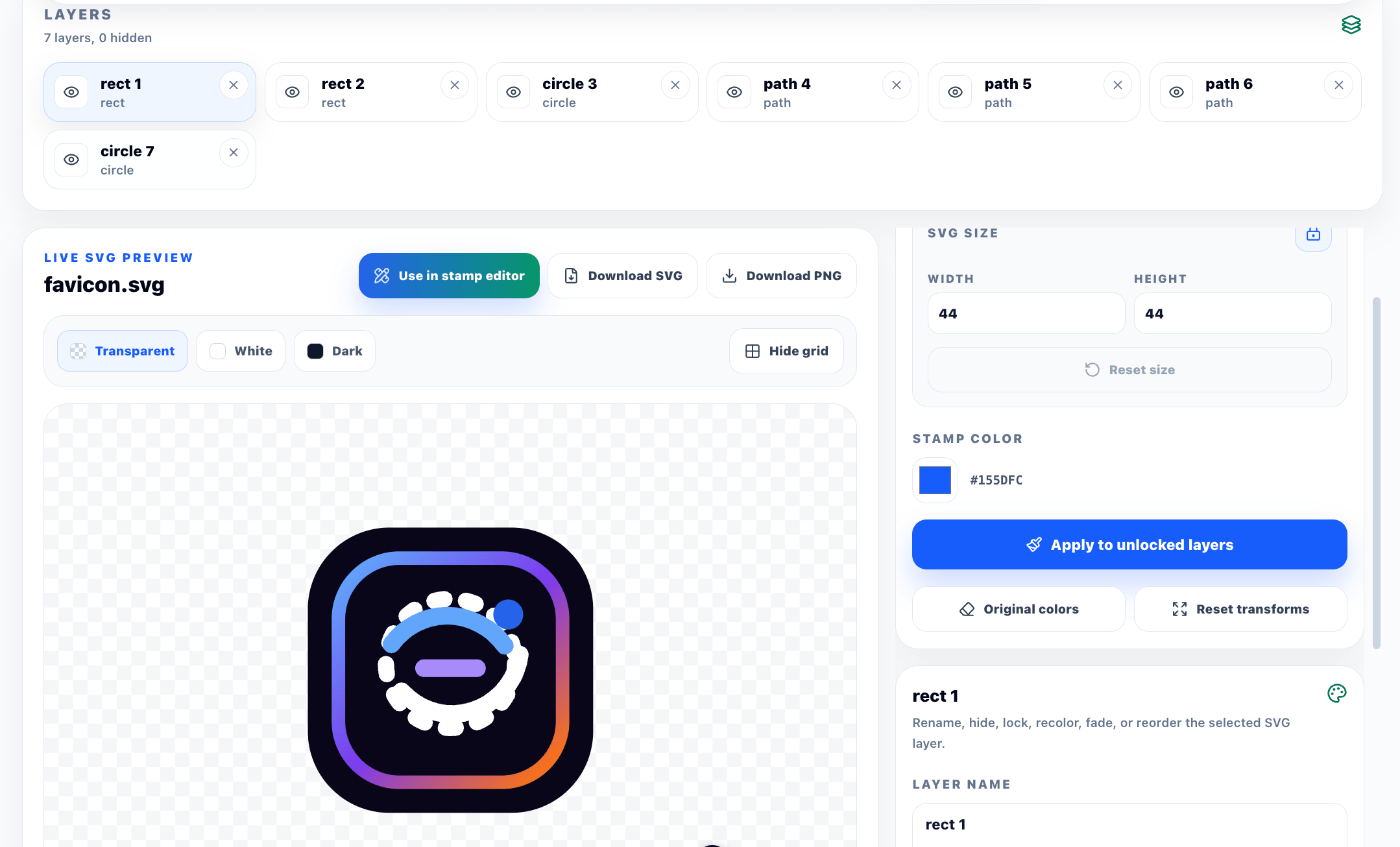
After a successful load, review the layer count, hidden-layer count, modified-layer count, and output size. Those indicators help you understand whether the file is simple enough for practical editing.
3. Review and name the useful layers
Select each layer and identify what it contributes. Rename important layers in plain language, such as outer ring, company name, center icon, approval word, or background test. The editor may derive names from existing labels or IDs, but source files often contain generic names that are not meaningful to the next person.
Use Solo to inspect one layer without permanently hiding the others. Lock a layer once it is correct so global color and transform actions do not change it accidentally. Hide nonessential layers before deleting them; this gives you a reversible visual comparison while you decide what the stamp actually needs.
You can duplicate an unlocked layer, move it up or down in stacking order, or delete it when more than one layer remains. Use duplication for a real design purpose, not to make the mark heavier without review.
4. Apply stamp color deliberately
The global Stamp color action applies one color to every unlocked layer. This is useful when a multicolor logo must become a single-ink document mark. Locked layers keep their current treatment, so review locks before applying the color.
Individual layers can use a selected color or return to the original appearance. If a gradient, patterned fill, or special paint definition does not translate cleanly, simplify the working copy. A stamp usually benefits from strong contrast and a clear silhouette, but the correct color still depends on the destination document and organizational rules.
Test the mark on transparent, white, and dark preview backgrounds. The white view catches pale edges. The dark view reveals unexpected white fills. The transparent view shows whether a background rectangle remains inside the export.
5. Adjust opacity and transforms
For an unlocked layer, Stampdy provides opacity, horizontal and vertical movement, scale, and rotation controls. It also lets you change canvas width and height and keep the original aspect ratio locked when appropriate.
Make small changes and inspect the full mark after each one. A center icon can look balanced by itself but drift away from the surrounding text when the complete stamp is visible. Reset a selected transform when an experiment fails, or reset all unlocked transforms to return to the parsed arrangement.
The preview grid can help with alignment, but it is a visual guide rather than a guarantee that the mark will be positioned correctly in a PDF. Final placement should be checked in the destination document.
6. Export or continue into the editor
Download SVG when you want an editable vector source for future changes. Download PNG when you need an easy-to-place image for document use. The tool names the output from the uploaded filename and adds a stamp suffix, making the relationship between source and export easier to follow.
You can also select Use in stamp editor. Stampdy packages the edited SVG as a custom image element and opens the main editor with that artwork loaded. Continue there when the vector needs a broader stamp composition, additional text, a border, or final placement controls.
Benefits of Layer-Level Vector Preparation
The first benefit is control. A raster filter can recolor pixels, but it cannot reliably explain which shape is a logo, tagline, border, or hidden background. Layer-level editing lets you make that decision directly when the SVG structure supports it.
The second benefit is maintaining an editable source. Saving the cleaned SVG preserves vector geometry for later revisions. A department name or color can change without tracing the mark again. The PNG remains useful for everyday documents, while the SVG remains the controlled working source.
The third benefit is preflight visibility. Preview backgrounds, layer statistics, locking, solo mode, and reset controls make problems easier to find before export. A hidden rectangle, pale stroke, oversized icon, or unexpected stacking order is easier to correct in the vector stage than after the mark has been placed across several documents.
The browser-based workflow also avoids requiring a full desktop vector application for small operational edits. That does not replace a designer when the identity itself needs redesign. It gives authorized staff a narrower tool for preparation: hide, lock, recolor, resize, preview, and export.
Choose the Right Output for the Next Job
Use the edited SVG as the source file when future changes are likely, when vector sharpness matters, or when another design system will consume the artwork. Reopen it after download and confirm that the expected layers, colors, and dimensions remain correct.
Use the PNG for common PDF placement and systems that do not accept SVG. Test transparency and size on a copy of the real page. A clean preview at full screen can still become unreadable when the mark is reduced to a small approval box.
Use the Stampdy online stamp maker when the vector is only one part of the final design. The main editor is better suited to composing the uploaded image with text and a broader stamp layout.
For a more detailed method of deciding which shapes to hide or keep, read the SVG layer cleanup guide. That article focuses on file hygiene; this guide focuses on the Premium Tool itself and the complete member workflow.
Limits to Check Before Approving an SVG Stamp
The editor exposes eligible top-level elements rather than reproducing every feature of a professional vector application. Nested structures, masks, clipping paths, filters, gradients, fonts, linked images, and imported styles can behave differently after sanitization or export. If the file relies on those features, simplify a copy before treating the output as approved.
Browser processing is a product implementation detail, not a blanket privacy or security promise. Follow your organization's rules for sensitive artwork, and do not upload controlled seals or confidential marks without authorization.
Color replacement is intentionally broad. Applying a stamp color to an unlocked group can affect fills and strokes throughout that group. Lock exceptions first, then compare the edited version with the source. If exact brand-color management is required, a dedicated design review may still be necessary.
Finally, a polished vector mark does not create permission to use it. Ownership, brand governance, approval authority, and any legal requirements remain separate from file preparation.
Frequently Asked Questions
Do I need a Stampdy subscription for SVG to stamp?
Yes. The current Premium Tool gate requires sign-in and an active monthly or yearly subscription. If access has expired or been cancelled, the interface asks you to renew or view available plans.
What is the SVG upload limit?
The current implementation accepts SVG files up to 4 MB. A file also needs a valid SVG structure and at least one eligible editable top-level element. Simplify files that depend on embedded HTML or external assets.
Can the tool export both SVG and PNG?
Yes. Download SVG for an editable vector source or PNG for common document placement. You can also send the edited SVG into the Stampdy editor as a custom image element.
Does the tool preserve every advanced SVG feature?
No. Sanitization and browser rendering can remove or change unsupported, risky, or externally linked features. Keep the original, inspect the cleaned file, and test both exports before approving them.
Is SVG to stamp better than generating a new design?
It is better when you already have authorized vector artwork and want direct control over its layers. Use a generator when the design itself does not yet exist. Use the manual editor when exact final text and layout matter more than source-file cleanup.
Conclusion
The SVG to stamp online Premium Tool is a focused preparation workspace for members who already have vector artwork. Sign in, upload a clean working copy, inspect top-level layers, lock essential pieces, simplify color and transforms, preview against several backgrounds, and export both the source and placement format you need. Keep the master SVG separate and test the result in its real document. Used this way, the tool preserves editability while making the everyday stamp asset easier to review and maintain.